
Updated 2026-06-06
Can Blacked Out Text in a PDF Be Recovered?
Yes—blacked out text can be recovered if it was not properly redacted. News outlets and courts regularly extract names from PDFs that looked safely censored. Searchers ask how to undo redaction, unredact text, or whether their blackout worked. The answer depends on whether your tool removed content from the PDF structure or only drew on top. This guide explains how recovery happens and how to prevent it—then follow how to black out information on a PDF or how to redact a PDF for a workflow that passes the Ctrl+A test.
- → Can blacked out text in a PDF be recovered?
- → How do people unredact a PDF?
- → I used black boxes—can someone copy the text underneath?
- → How to tell if my PDF redaction is real?
- → Why does Ctrl+A show hidden text in my redacted PDF?
How recovery happens
- Select All → Copy → Paste bypasses visual black rectangles.
- pdftotext and similar tools read the content stream, not the screen.
- Removing annotation layers in some viewers reveals overlay boxes.
- OCR on scans may read text beneath poorly burned-in boxes.
- Metadata and comments may contain the same strings you blacked out on page.
Run the test yourself before sending. Attackers will.
Overlay vs true redaction
| Method | Looks black on screen? | Recoverable? |
|---|---|---|
| Preview/Word shapes | Yes | Yes — text in content stream |
| Acrobat highlight/comment | Yes | Yes |
| Acrobat Apply Redactions | Yes | No — if Apply completed |
| Offline true redaction export | Yes | No — after verified export |
| Flat image scan after physical marker | Yes | Usually no — if no OCR text layer |
How to prevent recovery
- Use true redaction (Apply), not draw tools.
- Verify with Ctrl+A paste test and Find search.
- Scrub metadata and comments.
- For scans, burn in image pixels or verified flat export.
- Re-open in second PDF viewer and repeat tests.
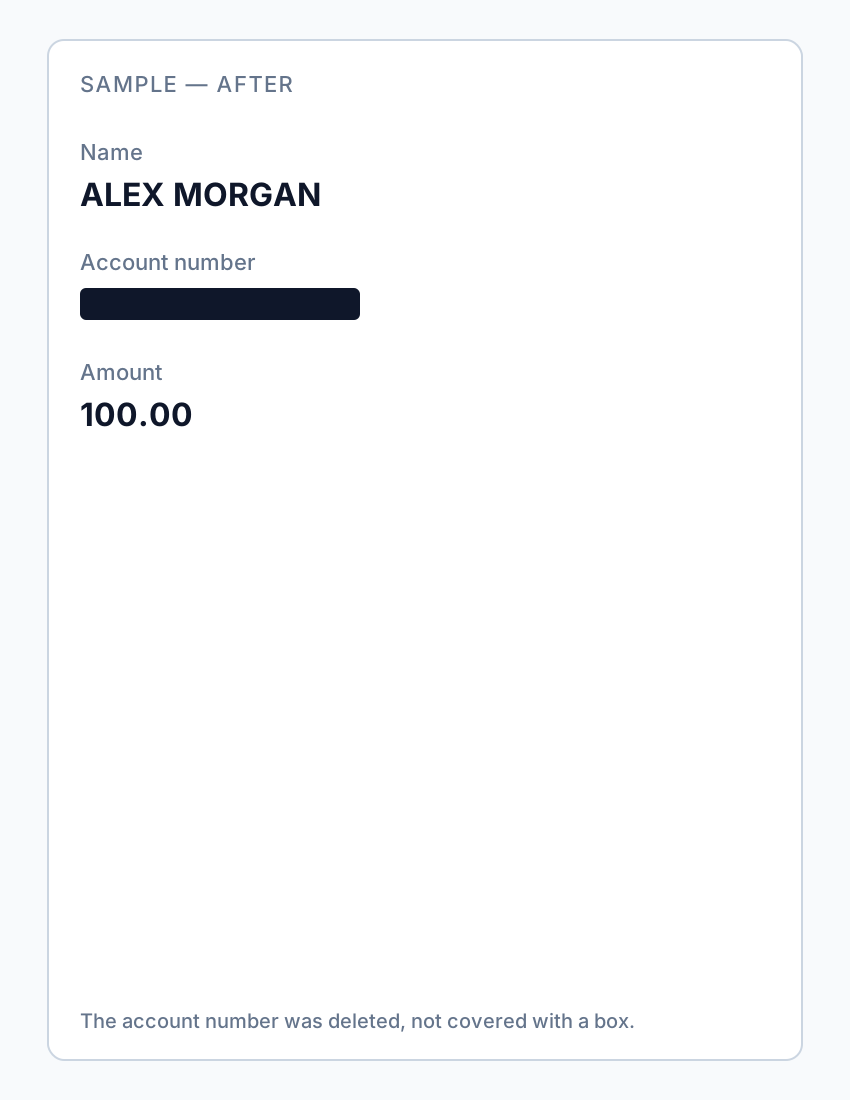
If you already sent an overlay “redaction,” assume the content is compromised—notify recipients and re-send a properly redacted file.
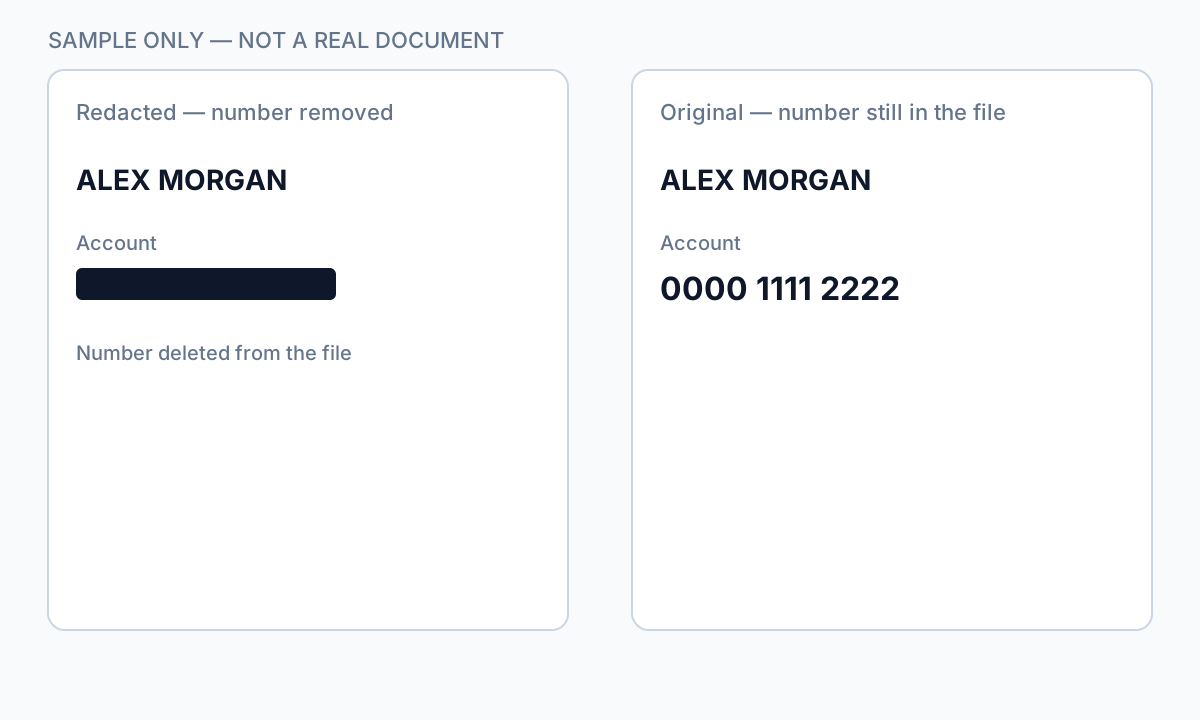
Step-by-step workflow
- Open your exported PDF.
- Ctrl+A → Copy → Paste into Notepad.
- If sensitive text appears, redaction failed—re-do with true removal.
- Find search for known strings.
- Check metadata and comments.
- Only send after all tests pass.
Common mistakes
- Assuming black appearance means safe
Overlays look identical to true redaction in viewers.
- Trusting free online "secure redact" labels
Many are overlays; verify locally.
Verification before you share
- ✓ Paste test returns no sensitive text.
- ✓ Find search empty for redacted identifiers.
- ✓ No editable annotation on redacted regions.
Offline tool option
For bank statements, legal productions, HR files, and other high-risk PDFs, desktop software that runs offline PII removal lets you auto-detect identifiers, review matches, and apply permanent redaction without uploading to the cloud. PDF redaction hub and Bulk PII redaction helps when you have entire folders—not one file at a time.
Download Free TrialFAQ
Can I undo proper redaction?
True Apply redaction is permanent on that file—keep an unredacted original separately.
Can lawyers recover my bank statement blackout?
If you used overlay tools, yes, easily. Use true redaction before sharing.
- Black Out PDF Text So It Cannot Be Copied
- How to White Out Text in a PDF
- Online PDF Redaction: Risks and Safer Alternatives
- Document Redaction Best Practices
- How to Redact a PDF (Hub: Bank, Card, Passport & More)
- How to Remove Metadata from PDF
- How to Redact a PDF Without Adobe
- Redacted Bank Statement Example: What to Black Out
- How to Redact Court Documents