
Updated 2026-08-29
Black Out PDF Text So It Cannot Be Copied
If you searched blackout PDF or how to black out text in a PDF before emailing a bank statement or contract, you need more than a black rectangle. Most tools only cover text visually; the underlying content often stays copy-pasteable. This guide shows how to black out information on a PDF the right way, verify the export, and when a blackout PDF free download beats risky online upload editors. For the full workflow, see how to redact a PDF.
- → How do I blackout a PDF / black out text in PDF?
- → How to black out information on a PDF without the text coming back?
- → Black out PDF—does Preview or a free online tool work?
- → How do I black out only part of a page—not the whole document?
- → Is there a free blackout PDF download that actually removes text?
Black out vs. redact: not the same thing
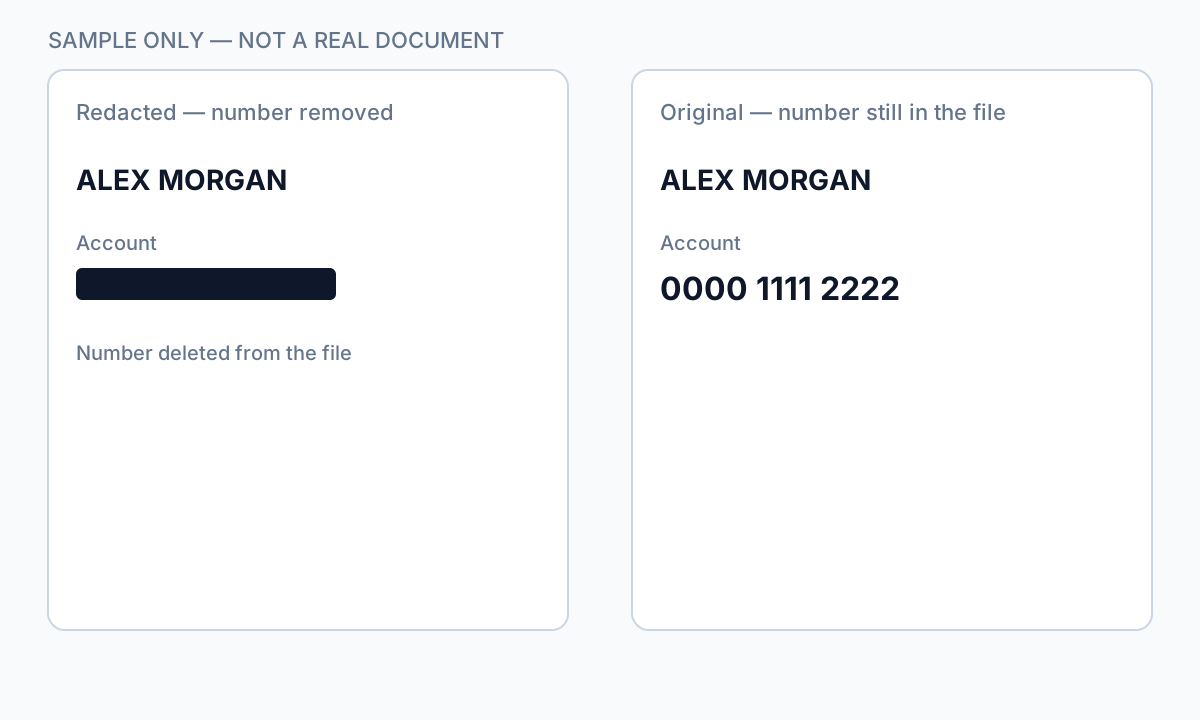
A PDF stores text as drawing instructions in a content stream. When you black out with a shape tool, you append “draw black rectangle here”—but the original character instructions remain. Text extractors and Ctrl+A ignore your rectangle. True redaction deletes or burns those instructions so recovery fails.
Open your exported PDF → Select All → Copy → Paste into Notepad. If any hidden word appears, you have visual blackout only. Do not send the file.
Which parts people black out most often
- Single contract lines (pricing, party name) while keeping the rest readable
- Account and routing numbers on bank statements
- SSN blocks on tax or HR forms
- Email addresses and phone numbers in discovery productions
- Signatures and photos on ID scans
- Chart data labels in financial reports while keeping axis titles
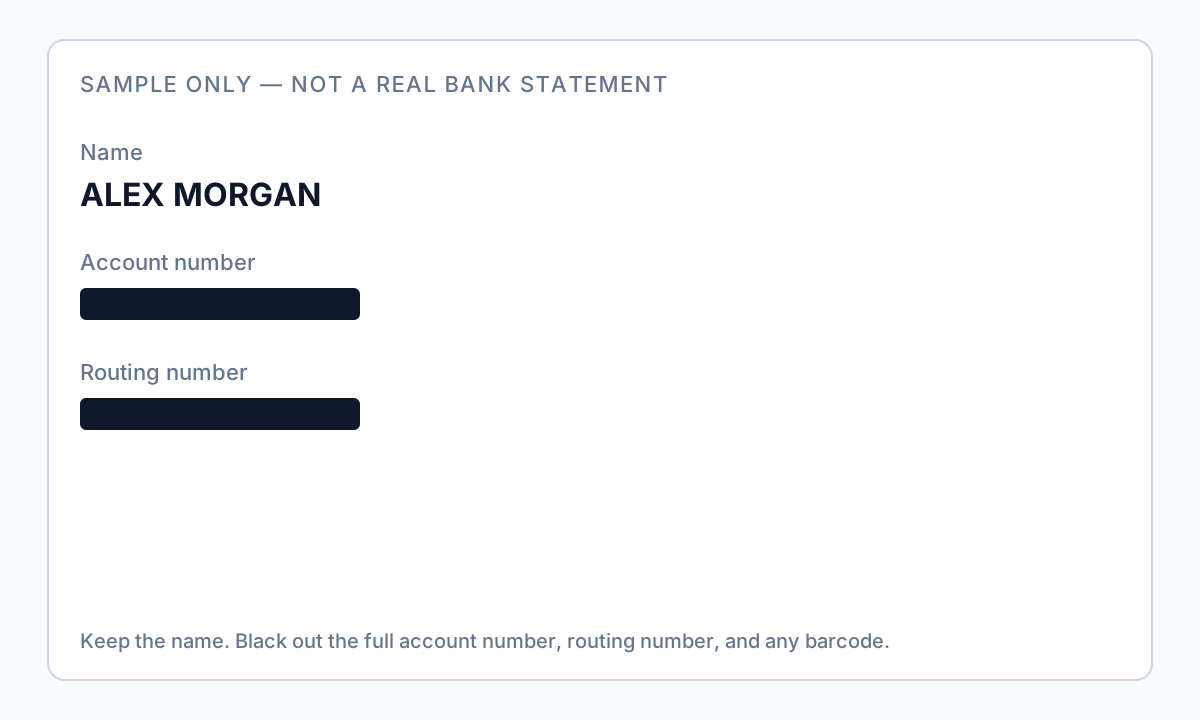
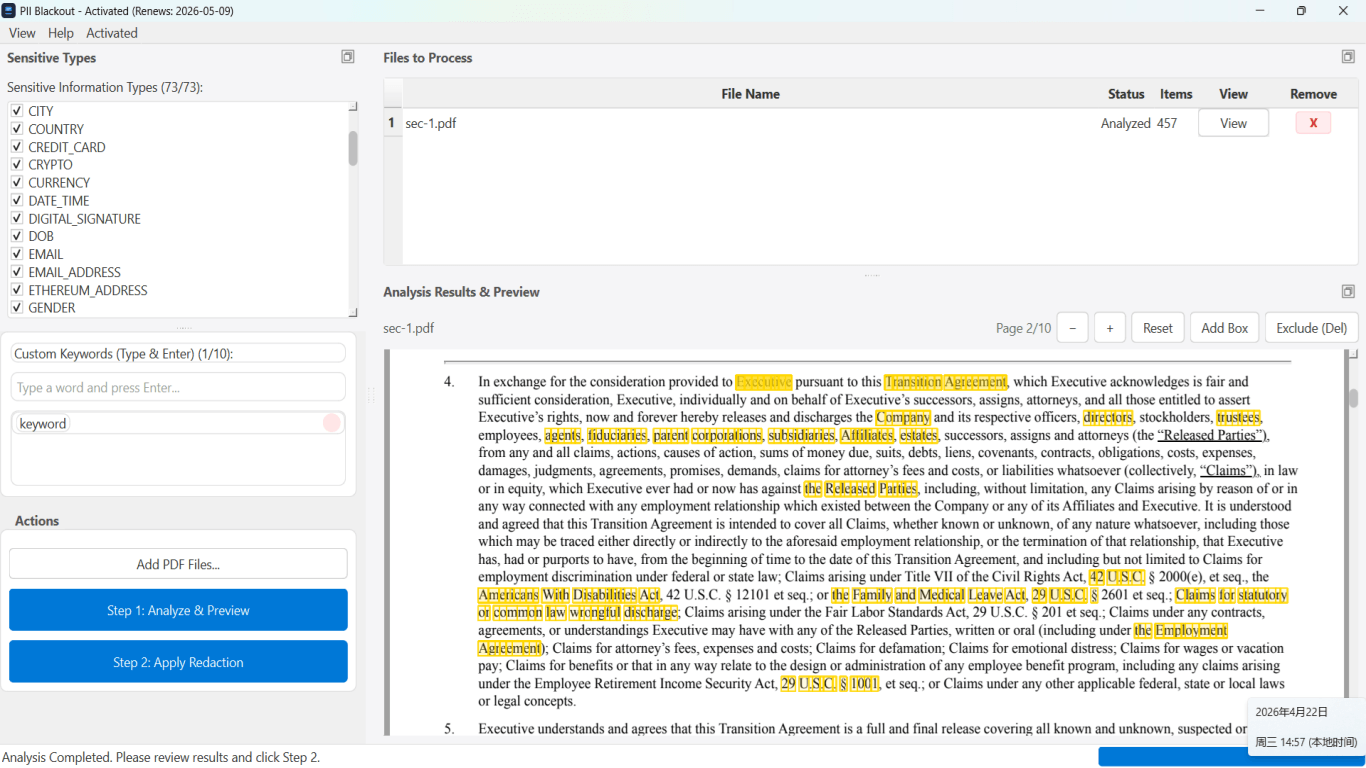
Partial redaction means more manual review: auto-detection finds candidates; you deselect what should stay visible, draw boxes for missed regions, then apply once for the whole file.
Tool comparison (partial blackout)
| Method | Black out part of page? | Text stays extractable? |
|---|---|---|
| Mac Preview shapes | Yes | Usually yes — fails Ctrl+A test |
| Free online PDF editor | Yes | Often yes; file uploaded to third party |
| Adobe Redact → Apply | Yes | No — if Apply completed |
| Offline auto-detect + manual boxes | Yes | No — after verified export |
Step-by-step safe workflow
- Define what the recipient needs to see—minimum necessary only.
- Inventory sensitive data: names, emails, phones, IDs, account numbers.
- Find every occurrence in body, headers, footers, tables.
- Apply true redaction—not paint rectangles.
- Export new file; never overwrite original.
- Verify: search, copy/paste, second viewer.
Scanned PDFs and metadata
Scanned PDFs may need OCR before detection. After redaction, scrub metadata—author names and hidden layers can leak even when the visible page looks clean. See our remove metadata guide after content redaction.
Step-by-step workflow
- Define minimum necessary fields for recipient.
- Save original; work on copy.
- Run auto-detection or manual mark for sensitive regions only.
- Deselect regions that must stay visible.
- Apply true redaction; export new PDF.
- Ctrl+A paste test + Find search for redacted strings.
- Scrub metadata on high-risk exports.
- Send via secure channel.
Common mistakes
- Drawing shapes instead of redacting
Overlay leaves extractable text—most common blackout failure.
- Redacting one occurrence, missing footers
Account numbers repeat on every page footer.
- Skipping verification because it looks black
Visual appearance identical for overlay vs true redaction.
Verification before you share
- ✓ Search output for redacted names/IDs: zero hits.
- ✓ Copy from redacted area: nothing meaningful pastes.
- ✓ Document Properties reviewed or scrubbed.
- ✓ Second viewer confirms same behavior.
Offline tool option
For bank statements, legal productions, HR files, and other high-risk PDFs, desktop software that runs offline PII removal lets you auto-detect identifiers, review matches, and apply permanent redaction without uploading to the cloud. PDF redaction hub and Bulk PII redaction helps when you have entire folders—not one file at a time.
Download Free TrialFAQ
How do I black out information on a PDF?
Use true redaction (Apply or offline desktop tool)—not draw shapes. Mark sensitive regions, apply permanent removal, export a new file, then run Ctrl+A → Copy → Paste into Notepad to verify nothing hidden comes back.
How do I black out info on a PDF for free?
Mac Preview Redact (Sonoma+) or Adobe trial can work if you verify the paste test. For bank statements and PII, a free trial desktop download keeps files offline—see our free redaction guide and download page.
Is “black out text in PDF” the same as redaction?
Not always. True redaction removes underlying content; many blackout methods only cover it visually.
What if the PDF is scanned?
May require OCR for detection; still need burn-in or true redaction on final export.
- How to White Out Text in a PDF
- How to Blur a PDF Without Leaking Text
- How to Redact a PDF (Hub: Bank, Card, Passport & More)
- How to Redact a PDF for Free
- How to Remove Metadata from PDF
- Can Blacked Out Text in a PDF Be Recovered?
- Redacted Bank Statement Example: What to Black Out
- How to Redact a PDF Without Adobe
- How to Redact a Scanned PDF with OCR