
Updated 2026-06-06
How to Remove Metadata from PDF
If you need to remove metadata from PDF files, you are addressing the right risk: documents leak information beyond visible page text. Metadata lives in document properties, XMP packets, comments, form fields, embedded attachments, and hidden OCR layers. Clearing Author alone is rarely enough. This guide explains what to scrub, the correct order after how to redact a PDF content redaction, and how to verify the export is actually clean before sharing bank statements, legal files, or HR documents.
- → How do I remove author name from PDF metadata?
- → What is PDF metadata and where does it hide?
- → Should I scrub metadata before or after redaction?
- → Does removing metadata remove PII from the page?
- → How do I verify metadata is truly gone?
What PDF metadata includes
Metadata is information about the document—not the visible text. A PDF can store properties (Author, Title, Subject), XMP XML with tool and organization history, review comments, populated form fields, embedded file attachments, and hidden layers from OCR or optional content groups.
- Document properties: author, title, subject, keywords, creator/producer, dates.
- XMP metadata: richer history from DMS exports (iManage, SharePoint).
- Comments and annotations: names, initials, timestamps.
- Form fields: hidden or default values with PII.
- Embedded attachments: original filenames inside the PDF container.
- Hidden layers/objects: OCR text layers, optional content groups.
Why metadata removal matters
Even when body text is blacked out, [email protected] or Title=Client Matter Name can identify parties. Court productions and FOIA responses have leaked from metadata when visible pages looked clean. Treat scrubbing as part of redaction—not optional cleanup.
Visible SSNs and account numbers remain in body text. Remove content first, then sanitize metadata.
Order of operations
- Start from a copy; keep original secure.
- Complete true content redaction (Apply—not overlay).
- Run Sanitize / Remove Hidden Information (Acrobat or equivalent).
- Clear Author, Title, Subject; remove embedded files and comments.
- Save As new PDF—not incremental save on sensitive original.
- Re-open Properties, paste test, and optional exiftool scan.
Sanitizing before redaction can be undone when the tool regenerates metadata on save—sanitize last.
Practical workflow without dedicated tools
Some teams export a flattened PDF that re-renders content, reducing annotation and layer risk. Flattening is not automatically perfect—still verify properties, search, and paste test. Combine flatten with true redaction for regulated sharing.
Connection to black-out and redact guides
Many visitors arrive after learning to black out text in a PDF. Hidden structures can still leak when the page looks perfect. Finish visible redaction first, then return here to remove metadata before transmission.
Step-by-step workflow
- Finish true content redaction on all pages.
- Open Document Properties; note sensitive fields.
- Run sanitizer per tool documentation.
- Remove embedded attachments if panel shows any.
- Clear comments and form field values.
- Save As new filename.
- Re-check Properties, Find search, and paste test.
Common mistakes
- Only clearing Author field
XMP, comments, and attachments often survive.
- Sanitizing before redaction
Save during redaction may rewrite metadata again.
- Metadata-only cleanup without content redaction
Visible PII still in body—scrub is not enough alone.
- Leaving Title = client matter name
Common DMS export leak in court productions.
Verification before you share
- ✓ Author/Creator generic or empty in Document Properties.
- ✓ No embedded files with PII filenames.
- ✓ Find search for known identifiers returns zero hits.
- ✓ Paste test on redacted regions still clean.
- ✓ Re-open in second viewer and re-check properties.
Offline tool option
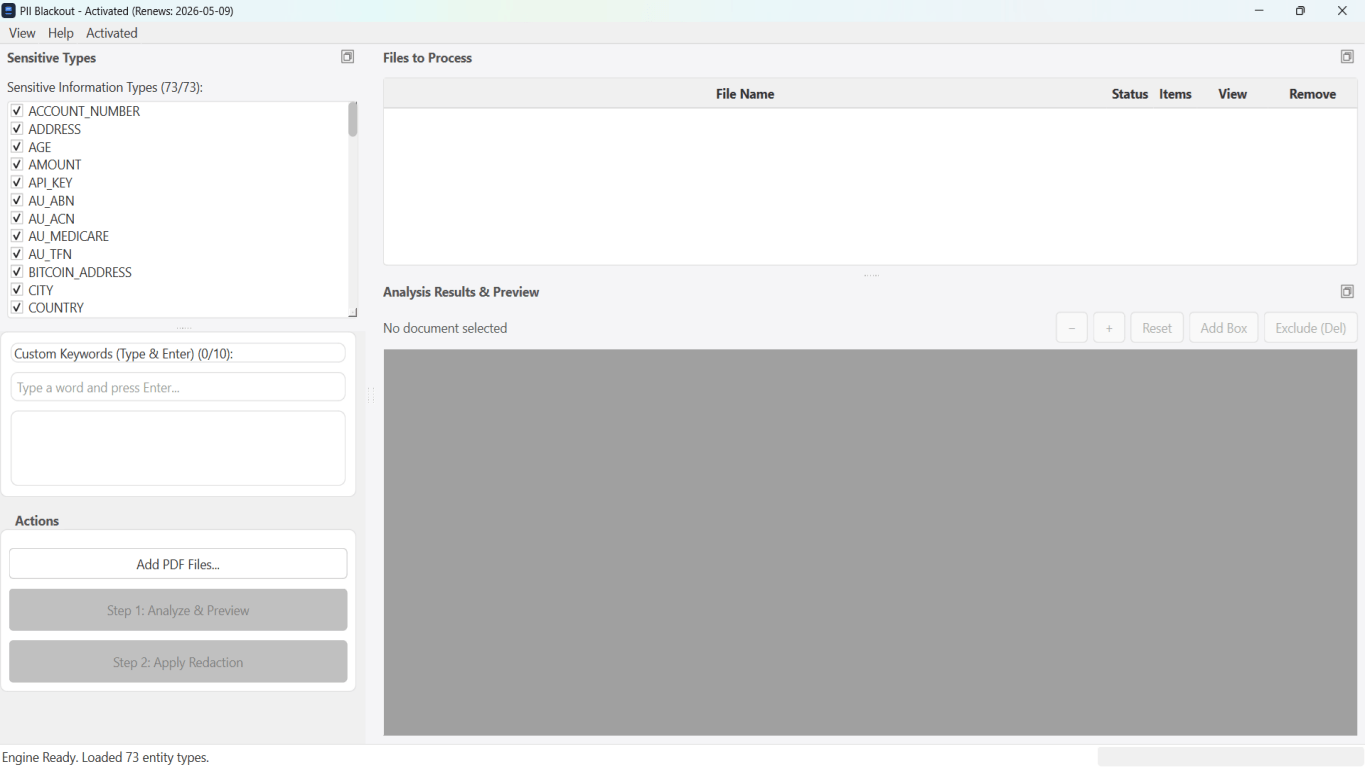
For bank statements, legal productions, HR files, and other high-risk PDFs, desktop software that runs offline PII removal lets you auto-detect identifiers, review matches, and apply permanent redaction without uploading to the cloud. PDF redaction hub and Bulk PII redaction helps when you have entire folders—not one file at a time.
Download Free TrialFAQ
Does removing metadata remove PII?
No. You must redact visible content and scrub metadata to avoid leaks through properties and hidden fields.
Why can metadata leak after blackout?
PDF stores author names, timestamps, and hidden layers independent of screen appearance. Verify with Properties and paste test.
How do I know metadata is truly gone?
Check document properties, search output, inspect annotations/forms, re-open in a different viewer. Treat export as part of sanitization.
Does Word Inspect Document replace PDF sanitize?
Inspect cleans DOCX before export—still sanitize PDF after redaction export.
- Black Out PDF Text So It Cannot Be Copied
- How to Redact a PDF (Hub: Bank, Card, Passport & More)
- Can Blacked Out Text in a PDF Be Recovered?
- Redacted Bank Statement Example: What to Black Out
- How to Redact a Resume for Anonymous Screening
- How to Redact Legal & Privilege Documents for eDiscovery
- How to Redact Confidential Documents