
Updated 2026-09-26
How to Black Out Text in a Word Document (Safely)
Searching how to black out text in a Word document usually means you want something gone before you email the file. The instinct—select text, set black highlight—is the most common leak in Office workflows. Highlight paints over characters; it does not delete them. This guide shows what "black out" must mean for modern Word (.docx), how to permanently remove text, and when PDF black bars are the better finish. Related: Word document redaction, how to redact a Word document, how to black out information on a PDF.
- → How do I black out text in Word before sharing?
- → Does black highlight hide text permanently?
- → How do I blackout a Word document so it cannot be copied?
- → Is there a redaction tool for Word blackout?
- → Should I black out in Word or convert to PDF?
Why “black out” in Word usually fails
Word’s highlighter, black shading, and drawing shapes change appearance. The underlying text runs remain in the document. Recipients can Select All, copy into Notepad, clear formatting, or use Compare Documents to recover what you covered. If your goal is irreversible removal, visual blackout in Word is the wrong tool.
After you “black out” text, copy that paragraph into Notepad. If the secret appears, the Word file is not safe to send—full stop.
| Word trick | Looks blacked out? | Copy recovers text? |
|---|---|---|
| Black highlight | Yes | Yes |
| Black font on black shading | Yes | Yes |
| Rectangle shape over text | Yes | Yes |
| White font | Sometimes | Yes |
| Delete / replace characters | Yes | No (for that span) |
| True .docx redaction replace | Yes | No (verify whole file) |
| PDF true redaction after export | Yes | No (verify PDF) |
What safe “black out text in Word” actually means
Safe blackout means the characters are gone from the .docx (replaced with a mask or removed) or the share package is a PDF where true redaction removed or burned the content. Anything else is a drafting visual for your own eyes—not an external deliverable.
- Decide whether the recipient needs an editable Word file or a PDF.
- If Word: permanently replace sensitive spans; clean comments/revisions.
- If PDF: export a clean copy, then apply true PDF blackout and paste-test.
- Verify Find/copy on the file you will attach—not the working draft.
Recommended offline workflow
For confidential letters and contracts, run offline detection on the .docx, review highlights, and apply permanent replacement—then verify. That produces a real blackout effect without relying on Word’s highlighter. For a sample, try the online demo on a non-confidential Word file first.
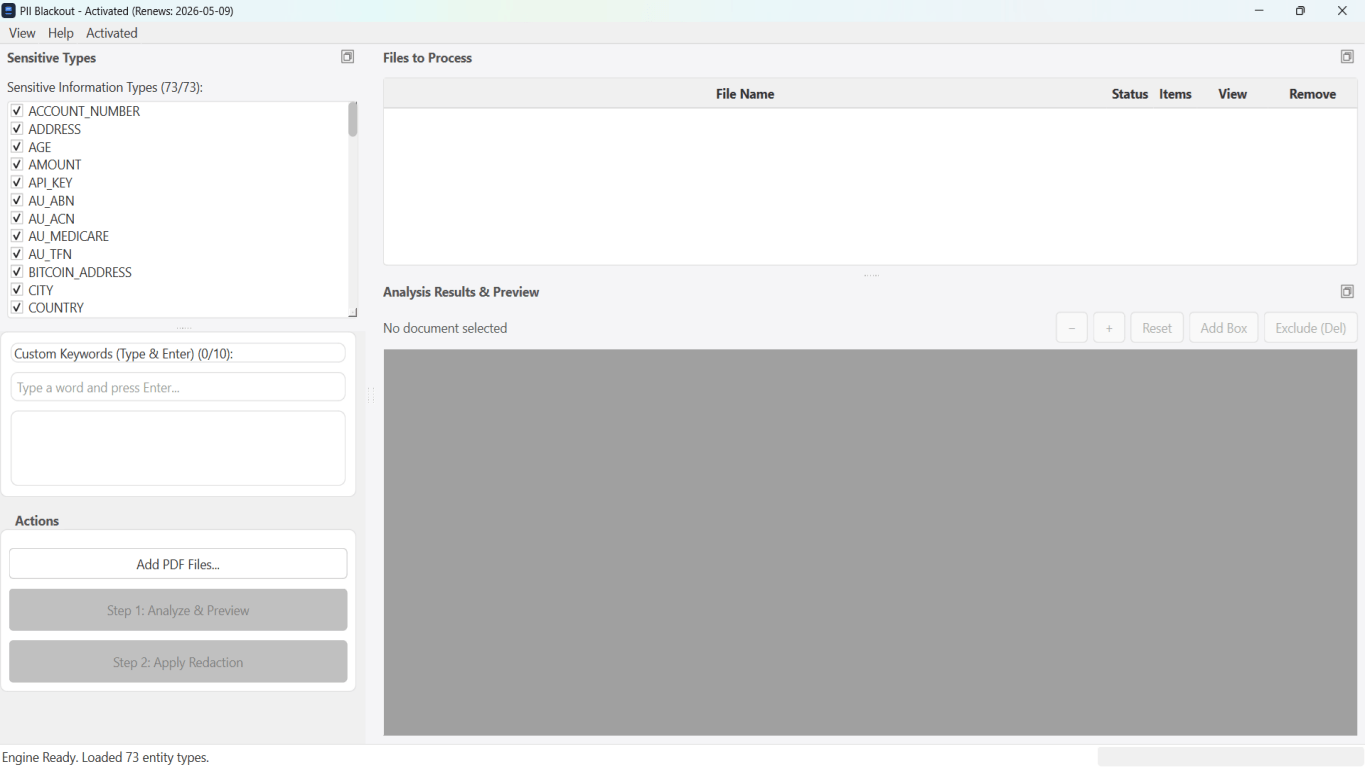
- Archive the original; black out a copy only.
- Clear track changes and comments that quote the secret.
- Detect names, SSNs, accounts, phones, emails, plus custom keywords.
- Apply replacement; deep-clean when available.
- Find the original string across headers and footers.
- Check text boxes and embeds; handle image PII via PDF if needed.
When PDF black bars are the better “black out”
Court portals, FOIA releases, and many opposing-counsel productions expect PDF with irreversible redaction—not an editable Word file. Export cleanly (no track changes), then use a true PDF redaction tool. See how to black out information on a PDF and recover blacked-out text to understand why overlays fail in PDF the same way they fail in Word.
| Situation | Black out in |
|---|---|
| Co-counsel still editing the letter | Native .docx redaction |
| E-filing / production set | PDF true redaction |
| Screenshot of a portal inside Word | PDF page blackout (images) |
| Public example with heavy PII | PDF + legal review |
Myths that keep circulating
- “If I convert to PDF after highlighting, it is safe.” — Not if the PDF still has a text layer of the same characters.
- “Print to XPS/PDF with black boxes drawn in Word is fine.” — Verify with copy-paste; many print paths preserve text.
- “Inspect Document blacked it out.” — Inspect is metadata/hidden-content cleanup, not body redaction.
- “Password-protecting the Word file is enough.” — Access control is not blackout; authorized recipients still see everything.
Step-by-step workflow
- Stop using highlight as the share method.
- Choose .docx replacement vs PDF true redaction.
- Work on a copy; preserve the original.
- Detect → review → apply permanent removal/replacement.
- Verify with Find and copy-paste (and PDF paste test if PDF).
- Attach only the verified export.
Common mistakes
- Black highlight, then Send
The classic failure. Copy-paste recovers every character.
- Drawing a rectangle and grouping it with the paragraph
Shapes sit above text; the text run remains in the file.
- Highlighting in Word, exporting PDF, skipping PDF Apply
You may simply embed the same recoverable text in a PDF wrapper.
- Blacking out body text but leaving the header email
Headers/footers are easy to miss and often contain the same identity fields.
Verification before you share
- ✓ Copy of blacked-out region pastes as mask/empty in Notepad.
- ✓ Find(original secret) returns no hits.
- ✓ Comments/revisions do not restate the secret.
- ✓ If PDF: Ctrl+A paste test clean.
- ✓ Outbound file is the verified export only.
Offline tool option
For bank statements, legal productions, HR files, and other high-risk PDFs, desktop software that runs offline PII removal lets you auto-detect identifiers, review matches, and apply permanent redaction without uploading to the cloud. PDF redaction hub and Bulk PII redaction helps when you have entire folders—not one file at a time.
Download Free TrialFAQ
How do I black out text in Word so it cannot be copied?
Permanently replace or remove the characters in the .docx (true redaction), or export to PDF and apply true PDF redaction. Highlight and shapes will still copy.
Is there a blackout button in Microsoft Word?
Word does not provide reliable true redaction. Treat highlight as cosmetic only. Use a .docx redaction workflow with verification or finish in PDF.
Can I black out text in Word offline?
Yes—offline desktop tools can detect sensitive spans in .docx, let you review, and permanently replace them without uploading the file.
Does black highlight work if I flatten to PDF?
Only if the PDF no longer contains selectable text of those characters. Always run a paste test. Prefer true PDF redaction over hoping a print driver flattened correctly.
What about blacking out part of an image in Word?
Crop or replace the image, or export to PDF and black out the page region. Covering an image with a Word shape is not secure.
- Word Document Redaction: Definition, Risks & Safe Workflow
- How to Redact a Word Document (.docx) Safely
- How to Redact Word and Excel Documents (Hub)
- How to Blackout a PDF (Black Out Text Safely)
- Can Blacked Out Text in a PDF Be Recovered?
- How to Redact a PDF (Hub: Bank, Card, Passport & More)
- Excel Redaction: Permanently Remove Sensitive Spreadsheet Data
- Document Redaction Best Practices