
Updated 2026-06-06
How to Redact a Resume for Anonymous Screening
Blind resume screening only works when identifiers are gone—not covered with a black box that still copy-pastes. HR teams need skills and employment history; they rarely need phone numbers in the first review pass. Leaks undo anonymization fast: PDF Author metadata set to [email protected], hyperlinks hiding LinkedIn URLs, filename Jane_Doe_Resume.pdf, or a photo block left in the export. Try the Resume / CV template online on one PDF to pre-select contact and location fields. See the CV and resume redaction scenario and how to redact HR documents for batch workflows.
- → How do I anonymize my resume PDF for blind hiring?
- → What should I remove from a resume for anonymous screening?
- → Does PDF metadata expose my name on a redacted resume?
- → Should I remove graduation years from my resume?
- → Can I keep company names on an anonymized resume?
Fields to remove for blind review
- Name in header, footer, and watermark.
- Email, phone, LinkedIn, portfolio URLs.
- Photo and headshot blocks.
- Street address (city/metro may stay per employer policy).
- Graduation years if age bias is a concern.
- References section with contact details.
- Personal website URLs in project descriptions.
Export from Word or Canva may embed linkedin.com/in/yourname on the icon alone. Remove link targets in PDF editor or export without hyperlinks.
PDF and filename gotchas
| Leak | Fix |
|---|---|
| Author = candidate email | Scrub metadata after export |
| Title = "John Resume" | Clear Document Properties Title |
| Filename Jane_Doe.pdf | Rename Candidate-1042.pdf or employer ID |
| Hidden text layer in Canva export | Paste test entire page |
| Comments from recruiter review copy | Export clean PDF, not reviewed DOCX |
Workflow
- Copy resume to working file; preserve original.
- Strip contact block, photo, references.
- Replace name with "Candidate #[ID]" if ATS requires label.
- Remove hyperlink destinations.
- Export PDF; apply true redaction on any leftover PII regions.
- Scrub metadata; rename file generically.
- Paste test and open Properties on exported PDF.
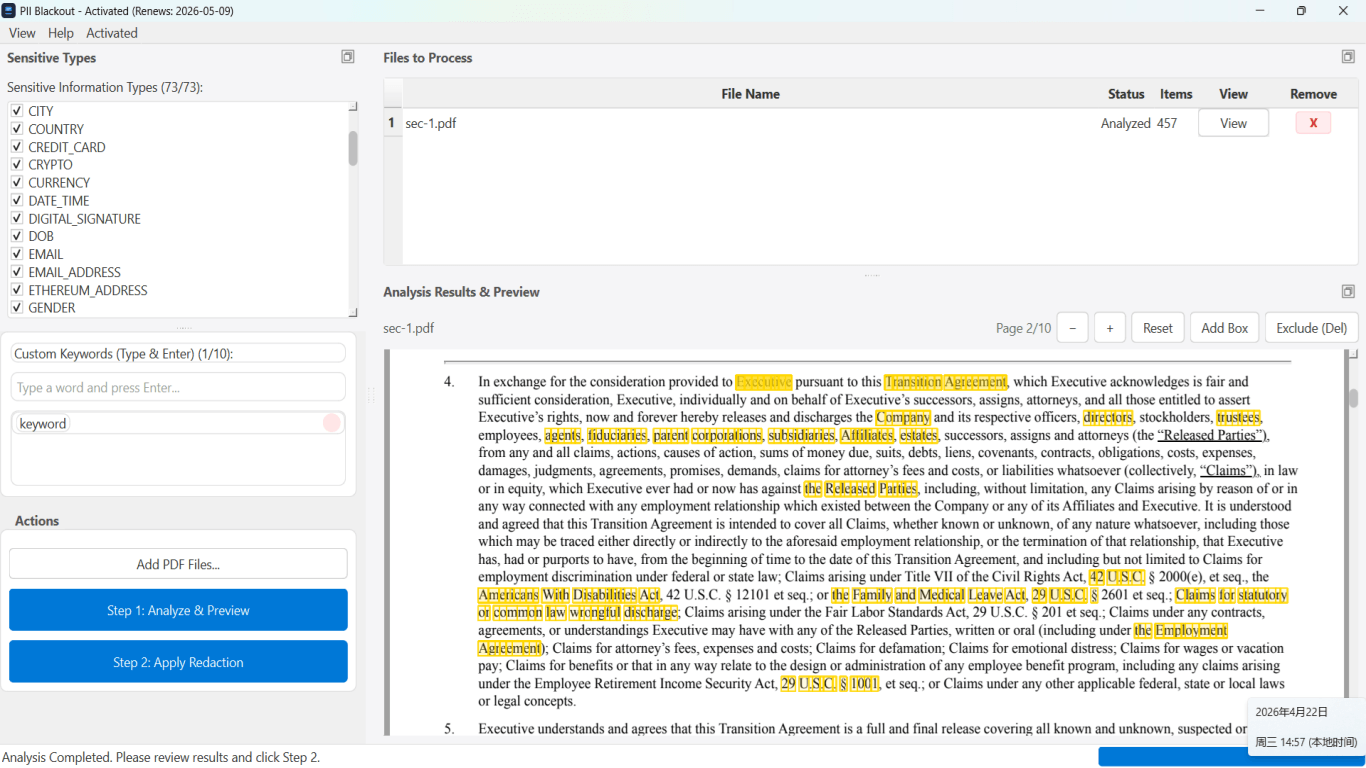
Step-by-step workflow
- Create redacted working copy.
- Remove name, contact, photo, references.
- Remove or genericize hyperlinks.
- Export PDF; true-redact any remaining PII.
- Scrub Author/Title metadata.
- Rename file to candidate ID only.
- Paste test and metadata check before ATS upload.
Common mistakes
- Black box over name in Word
Compare Documents or copy-paste exposes original text.
- Filename with legal name
Undoes blind screening when recruiter saves attachment.
- Leaving references letter as attachment
Attachment re-introduces full PII.
Verification before you share
- ✓ No name/email in metadata Properties.
- ✓ Hyperlinks removed or destinations generic.
- ✓ Filename anonymized.
- ✓ Paste test returns no phone or email.
Try the Resume / CV template online
Anonymize one resume PDF in the browser: the Resume / CV preset selects contact info, location, and ID fields recruiters usually strip for blind review.
The Resume / CV template is pre-selected for this guide. Upload a sample file to see detections, then download the desktop app for confidential batch work.
Redact online — Resume / CVOffline tool option
For bank statements, legal productions, HR files, and other high-risk PDFs, desktop software that runs offline PII removal lets you auto-detect identifiers, review matches, and apply permanent redaction without uploading to the cloud. PDF redaction hub and Bulk PII redaction helps when you have entire folders—not one file at a time.
Download Free TrialFAQ
Should company names stay on anonymized resumes?
Usually yes for skill assessment; remove if a tiny industry makes candidate identifiable.
Do I remove graduation years?
Follow employer blind-screening policy—years enable age inference.