
Updated 2026-10-21
How to Blur a PDF Document
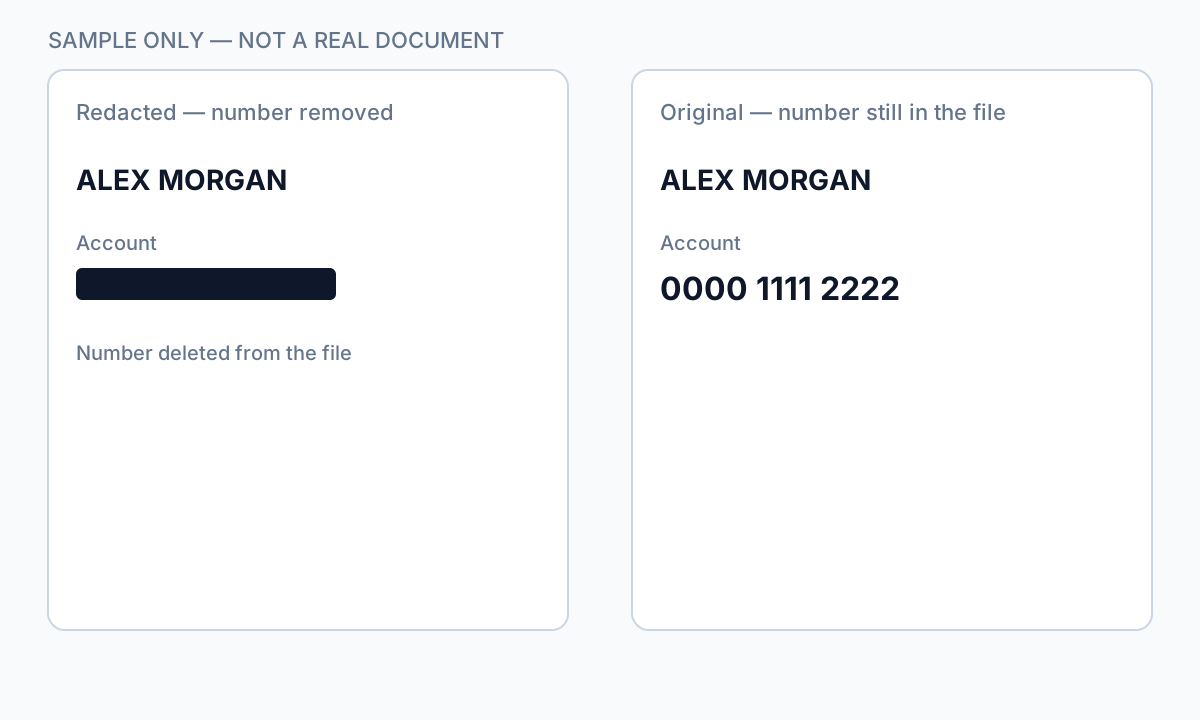
To blur a PDF document, cover a region so it is unreadable on screen. On a photo or a flat scan, blur can be enough if you export a new image and there is no text layer underneath. On a normal text PDF, blur and a black box both leave the characters in the file, and copy-paste still returns them. This guide is the how-to, then the check that tells you whether the blur actually removed anything. When the words must be gone, switch to true redaction or how to black out text in a PDF.
- → How do I blur text on a PDF?
- → Is blurring a PDF the same as redacting?
- → Can blurred PDF text be recovered?
- → Blur PDF online— is it safe for bank statements?
- → Should I blur or black out sensitive PDF text?
Blur vs redaction
| Method | Visual effect | Text extractable? |
|---|---|---|
| Gaussian blur on text layer | Soft edges | Often yes — text still in PDF |
| Blur on flat image scan | Pixel smear | Usually no — if no OCR layer added |
| Black box overlay | Hard cover | Yes — classic copy-paste leak |
| True redaction (Apply) | Solid black | No — content removed from stream |
If Ctrl+A → Copy → Paste returns readable text, blur did not protect the data.
When blur is acceptable
- Obscuring faces in photos embedded in PDF pages (plus verify no text caption names).
- Casual sharing where recovery risk is low and content is image-only.
- Draft review watermarks—not final production to opposing counsel.
For SSNs, account numbers, medical IDs, and legal party names, use true redaction—not blur tools marketed as “blur PDF online.”
Secure alternative workflow
- Identify whether PDF is text-native or scan/image.
- For text PDFs: use redaction with Apply, not blur.
- For scans: redact then export flat image if required.
- Verify with paste test and Find search.
- Scrub metadata before external share.
Step-by-step workflow
- Determine if PDF has selectable text under the region.
- If yes, abandon blur—use true redaction.
- If image-only, blur or redact pixels then flatten export.
- Run Ctrl+A paste test.
- Search output for redacted strings.
Common mistakes
- Using blur for bank or tax PDFs
Text layer survives most blur effects.
- Online blur upload for client files
Full document leaves your device—use offline redaction.
Verification before you share
- ✓ Paste test returns no sensitive text.
- ✓ No OCR text layer under blurred image regions.
- ✓ Metadata scrubbed for external share.
Offline tool option
For bank statements, legal productions, HR files, and other high-risk PDFs, desktop software that runs offline PII removal lets you auto-detect identifiers, review matches, and apply permanent redaction without uploading to the cloud. PDF redaction hub and Bulk PII redaction helps when you have entire folders—not one file at a time.
Download Free TrialFAQ
Can I blur a PDF for free online?
You can, but free blur tools rarely remove underlying text and often require upload. Not suitable for regulated PII.
Is blur better than a black box?
Neither removes text in a native PDF. True redaction removes content; overlays and blur only change appearance.