
Updated 2026-08-29
How to Redact a Scanned PDF with OCR
A scanned PDF looks like a normal file—but often it is a stack of page images with no selectable text. Copier “scan to email,” fax-to-PDF, and phone photos of bank statements all land here. Searchers ask how to black out a scanned PDF when Ctrl+A returns nothing (so they think there is nothing to leak) or when Adobe warns “cannot find text that might be in your document as an image.” For the product-level definition of OCR redaction, start there—then use this page for scan-type checklists. Verify with can blacked out text be recovered and how to black out information on a PDF.
- → How do I redact a scanned PDF that has no selectable text?
- → Why does Adobe say it cannot find text in my scanned PDF?
- → Is print-marker-rescan the only way to redact a fax PDF?
- → Do I need OCR before redacting a scanned bank statement?
- → Can someone recover text from a scanned PDF I blacked out in Preview?
Three types of “scanned” PDF (identify yours first)
Not every scan behaves the same. Open the file and try Select All (Ctrl+A). If text highlights, you have a searchable layer—maybe from the scanner’s OCR or a prior export. If nothing highlights, you likely have pure image pages. If highlights appear but do not match what you see on screen, you have bad OCR offset—a dangerous middle case where auto-search redacts the wrong coordinates.
| Type | How to detect | Redaction approach |
|---|---|---|
| Image-only (no text layer) | Ctrl+A selects nothing; Find returns no hits | Area-based redaction on image pixels; optional OCR first for pattern search |
| OCR-enhanced scan | Text selects and matches visible words | Pattern detection + manual boxes; verify OCR matches visuals |
| Bad / offset OCR | Text selects but sits misaligned vs. pixels | Do not trust Find-and-redact alone—manual boxes on visible regions |
| Mixed native + scan pages | Some pages select, others do not | Split workflow per page type or process entire doc with image burn-in |
Acrobat’s “Find text and redact” skips content stored as images. Scanned pages need area redaction that destroys pixels in the region—or OCR first, then verify coordinates before apply.
Why scanned PDF redaction fails
- Redacting only the OCR text layer while the scanned image still shows SSN digits to the human eye.
- Drawing black shapes in Preview or Word—overlay on image PDFs; underlying image data often remains extractable via image extraction tools.
- Low-DPI fax headers: OCR never sees account numbers in the header band; zero auto-matches feels like success.
- Phone photos embedded in PDFs: skew, glare, and dual layers (photo + auto-OCR) confuse detection.
- Assuming Ctrl+A silence means the file is safe—image PDFs leak visually and via pdfimages extraction even when paste is empty.
myFICO forum users recommend print → marker → rescan for personal statements. That works when the final file is a flat image with no hidden text re-added—but it is tedious for multi-page productions. Desktop tools that burn redaction into page images give repeatable results with verification.
Workflow A: OCR first, then pattern redaction
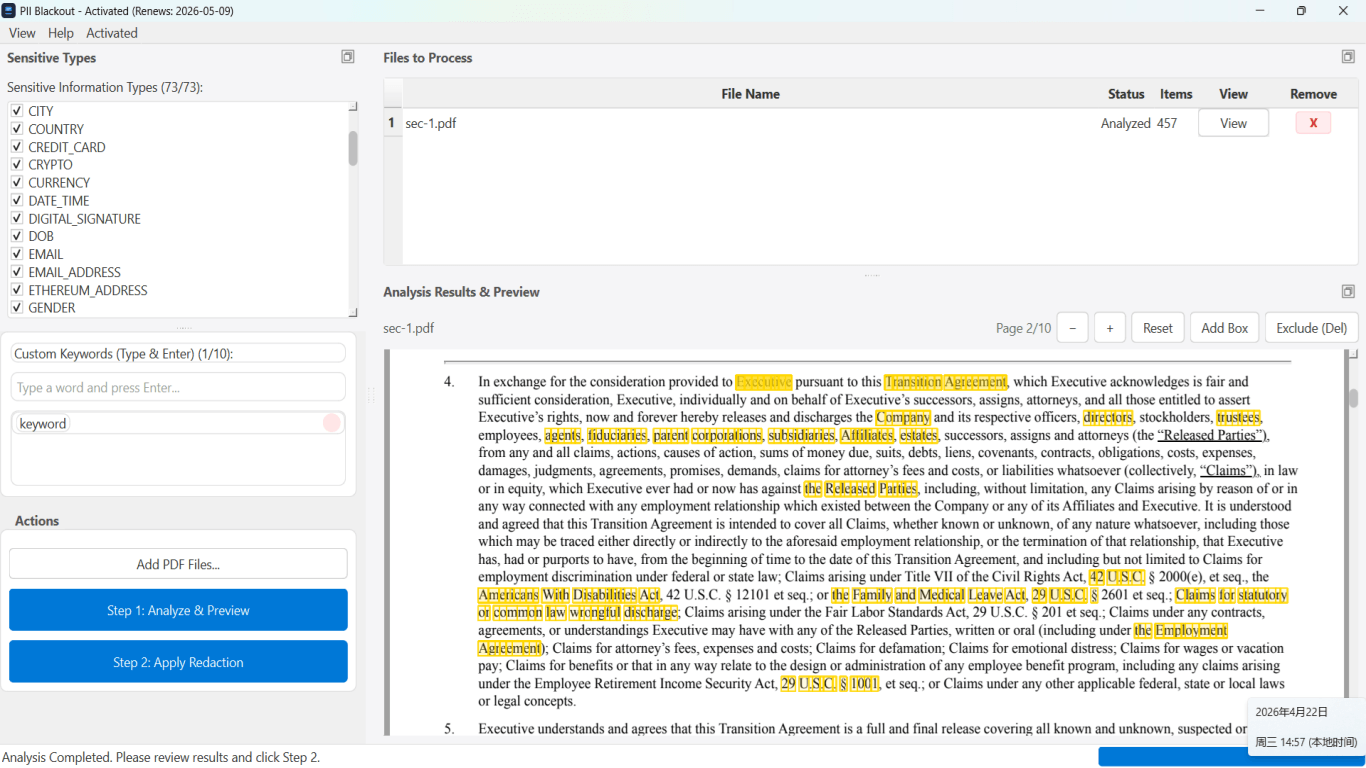
When pages are clean scans at 300 DPI or better, run OCR (correct language, searchable PDF output). Validate on three sample pages: click a word in the OCR layer and confirm it aligns with the visible scan. Then run SSN, account, phone, and email detection across the document.
- Save original scan as scan-original.pdf (never email this copy).
- Run OCR on all pages; export searchable PDF if tool requires separate step.
- Spot-check OCR alignment on page 1, a middle page, and last page.
- Run auto-detection for financial and identity patterns.
- Manually box regions OCR missed (signatures, handwritten amounts, fax headers).
- Apply redaction that removes both OCR text and image pixels in marked regions.
- Verify: visual read + Find search + extract images from PDF to inspect thumbnails.
Workflow B: Area redaction without reliable OCR
Faxes, low-DPI scans, and degraded copies may never OCR cleanly. Switch to region-based redaction: draw boxes over visible sensitive bands (header, signature block, account table). Apply burn-in that replaces image pixels—not annotation overlays.
On faxed bank statements, account numbers often sit in a 1-inch top margin OCR skips. Always manually box the full header and footer bands even when auto-detection returns zero matches.
Print-marker-rescan remains valid: print, cover with opaque ink or tape, scan at 300 DPI, confirm no selectable text in output. For law firms and SMBs processing volume, offline burn-in redaction is faster and easier to audit than physical rescanning.
Scanned IDs, checks, and exhibit photos
ID scans and check images need region redaction on the photo itself—numbers appear in multiple zones (front number, barcode area, MICR line on checks). OCR may read digits incorrectly; manual boxes plus visual verification are mandatory. Phone photos saved as PDF should be treated as image-only unless you confirm a clean OCR layer.
Verification for scanned PDFs (paste test is not enough)
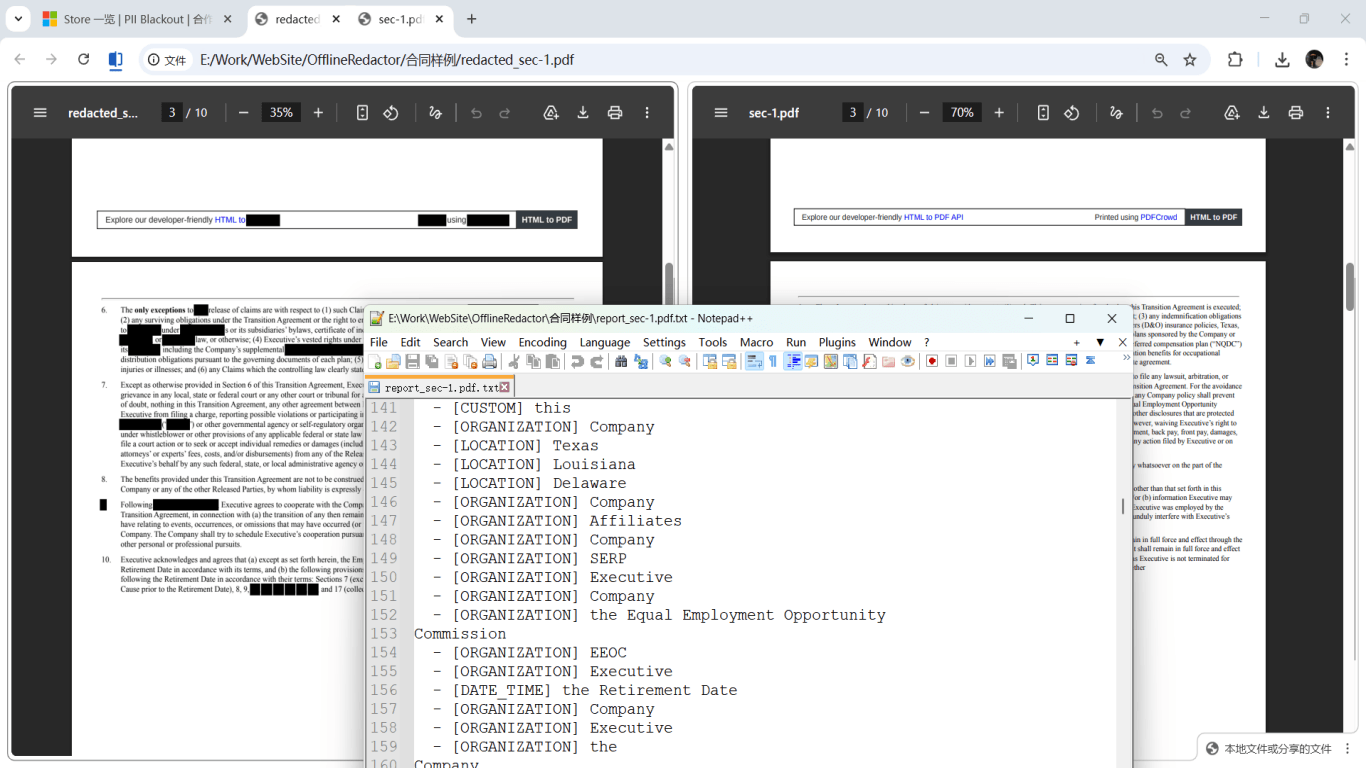
- Visual inspection of every page at 100–150% zoom on redacted regions.
- Find/Search for known strings if OCR layer exists post-redaction.
- Ctrl+A paste test when text layer remains (should return nothing sensitive).
- Export page images or use pdfimages to confirm blacked regions have no readable digits in thumbnails.
- Open in a second viewer (Edge, Chrome, Acrobat Reader) for consistency.
Step-by-step workflow
- Determine PDF type: image-only, OCR scan, bad OCR, or mixed.
- Save unredacted original locally; never edit the only copy.
- For clean scans: run OCR; validate alignment on sample pages.
- Run auto-detection for SSN, account, routing, phone, email patterns.
- Manually box fax headers, check images, handwriting, and barcode zones.
- Apply burn-in redaction (image pixels + OCR text removed in regions).
- Verify visually on every page; run Find/paste tests where text layer exists.
- Scrub metadata; export as scan-redacted-descriptive-name.pdf.
- Send redacted copy via secure channel.
Common mistakes
- Redacting only the OCR layer
Digits remain visible in the scan image. Humans and image extraction tools still see them.
- Trusting zero detection matches on a fax
Low DPI and header fonts break OCR. Zero matches often means broken detection, not a clean file.
- Using Word highlight on a scanned PDF
Forums document black-on-black text that still copies out. Highlight does not destroy image pixels.
- Skipping visual review because paste test was empty
Image-only PDFs pass paste tests while still displaying account numbers on screen.
Verification before you share
- ✓ Every page visually inspected at zoom on redacted zones.
- ✓ Find search returns no SSN/account hits (if OCR layer present).
- ✓ Ctrl+A paste test clean (if text selectable).
- ✓ Sample page images extracted—no readable digits in redacted bands.
- ✓ Fax header and footer bands manually confirmed.
Try the Bank Statement template online
Upload one PDF or image and let the Bank Statement preset find account numbers, routing digits, contact info, and payment QR/barcodes—then review before you apply redaction.
The Bank Statement template is pre-selected for this guide. Upload a sample file to see detections, then download the desktop app for confidential batch work.
Redact online — Bank StatementOffline tool option
For bank statements, legal productions, HR files, and other high-risk PDFs, desktop software that runs offline PII removal lets you auto-detect identifiers, review matches, and apply permanent redaction without uploading to the cloud. PDF redaction hub and Bulk PII redaction helps when you have entire folders—not one file at a time.
Download Free TrialFAQ
Why does OCR miss fax headers?
Low resolution, skew, and thermal fax fading. Manually redact the top and bottom inch of fax PDFs regardless of OCR results.
Can I redact a scanned PDF in Mac Preview?
Sonoma+ Redact can remove marked visible content on some PDFs, but scans and edge cases (off-page text, metadata) need verification. For regulated scans, use offline burn-in tools or verified print-rescan.
Do I need to re-run OCR after redaction?
Usually no—verify visually instead. Re-OCR on redacted exports can hallucinate characters from black boxes. Production goal is a clean visual and no extractable sensitive text.
How is scanned PDF redaction different from digital PDF redaction?
Digital PDFs leak via copy-paste on text layers. Scans leak via visible pixels and image extraction even without a text layer. You must burn in image regions, not only delete OCR text.