
Bulk PII redaction for entire PDF folders
Manual redaction does not scale when you have dozens of bank statements, HR files, or discovery documents. PII Blackout supports bulk PII redaction: drop a folder, set detection rules once, review matches, and export redacted copies—all offline on your desktop. Pair with offline PII removal (why files stay local) and batch PDF blackout (folder blackout rulesets).
- Process multiple PDFs and subfolders in one run
- Same PII rules applied consistently across every file
- Ideal for e-discovery prep, FOIA responses, and client file batches
- Reduce human error vs. opening files one by one in Adobe
- Step 1 analyzes the folder and highlights detected PII
- Keep, deselect, or add manual boxes before permanent apply
- False positives stay under your control—even at batch scale
- Detection engine details: automatic PII detection
Who bulk PII redaction is for
Searchers for bulk or batch PII redaction already know one-file tools waste time. Typical volume scenarios:
- Law firms & eDiscovery: productions with hundreds of PDFs need the same identifier types removed on every page—without uploading the set to a consumer site. See legal eDiscovery and So schwärzen Sie Rechtsdokumente sicher.
- CPAs & bookkeepers: month-end folders of bank and card statements for multiple clients—one ruleset, many exports. Guides: Geschwärzter Kontoauszug: Beispiel, was schwärzen · Geschwärzte Abrechnung: Beispiel.
- HR & people ops: onboarding packs, payroll exports, and benefits PDFs where SSNs and home addresses repeat across files—see So schwärzen Sie HR-Dokumente.
- Healthcare / PHI teams: chart export batches before attorney or insurer handoff—prefer local folder processing over upload tools (medical records redaction).
Bulk workflow: folder → detect → review → apply → verify
Bulk automation is only safe when every file gets the same pipeline—and a human checkpoint before burn-in:
- Drop a folder — select PDFs or nested subfolders on your Windows or Mac machine (no cloud upload).
- Detect once — run the same entity rules (names, SSNs, accounts, cards, custom keywords) across the set.
- Review matches — spot-check high-risk files, deselect false positives, add boxes for edge layouts.
- Apply permanently — remove underlying text, not Preview shapes or highlighter overlays.
- Verify samples — search / Ctrl+A paste on several exports (Kann geschwärzter Text in einem PDF wiederhergestellt werden?).
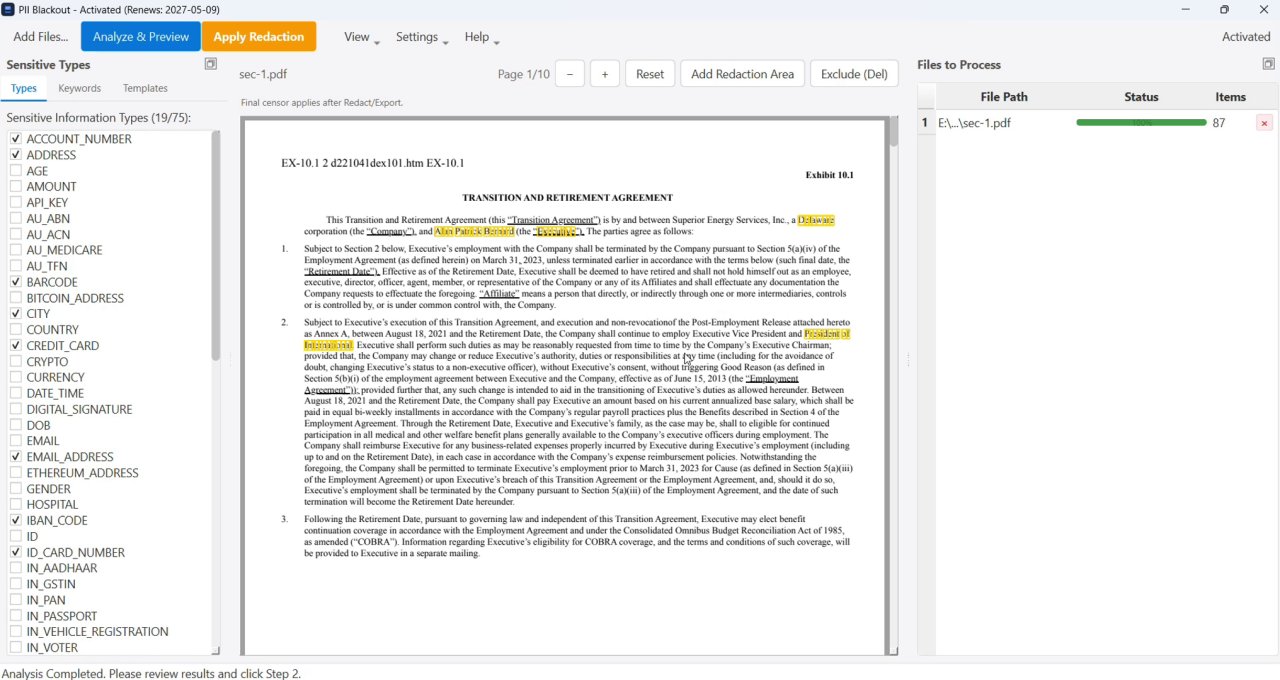
Step-by-step how-to: So schwärzen Sie PDFs im Batch. Single-file offline path: offline PII removal.
One-by-one redaction vs bulk folder processing
Opening each PDF in Acrobat and marking redactions by hand works for a handful of pages. At folder scale, rules drift, headers get missed, and privileged files often get pushed to “quick” online tools. Bulk PII redaction keeps detection consistent and processing local.
| Criteria | Manual / one file at a time | Bulk PII redaction (desktop) |
|---|---|---|
| Throughput | Hours per folder; easy to skip pages | One ruleset across many PDFs |
| Consistency | Depends on who marked each file | Same entity types and keywords every run |
| Review safety | Fatigue increases miss rate | Analyze → review → permanent apply |
| Upload risk | Tempting to use free online batch sites | Folder stays on your machine |
| Best for | 1–2 short PDFs | Client batches, HR packs, discovery sets |
Tool landscape: PDF redaction alternatives. Upload risks: Online-PDF-Schwärzung: Risiken und sicherere Alternativen.
Common bulk redaction workflows
- Financial folders: Geschwärzter Kontoauszug: Beispiel, was schwärzen · Kreditkartenabrechnung im PDF schwärzen · Geschwärzte Abrechnung: Beispiel · Finanz-PDFs schwärzen: was weg muss
- Tax & year-end packs: So schwärzen Sie Steuerdokumente sicher
- Scanned batches / OCR: OCR-Based Redaction for Scanned PDFs · So schwärzen Sie ein gescanntes PDF (OCR erforderlich)
- Legal & medical: eDiscovery · PHI / HIPAA · So schwärzen Sie HR-Dokumente
- Basics: So schwärzen Sie PDFs im Batch · PDF-Text schwärzen, damit er nicht kopiert werden kann · So entfernen Sie Metadaten aus PDF