
Updated 2026-06-06
Redact a Utility Bill: Keep Name and Address
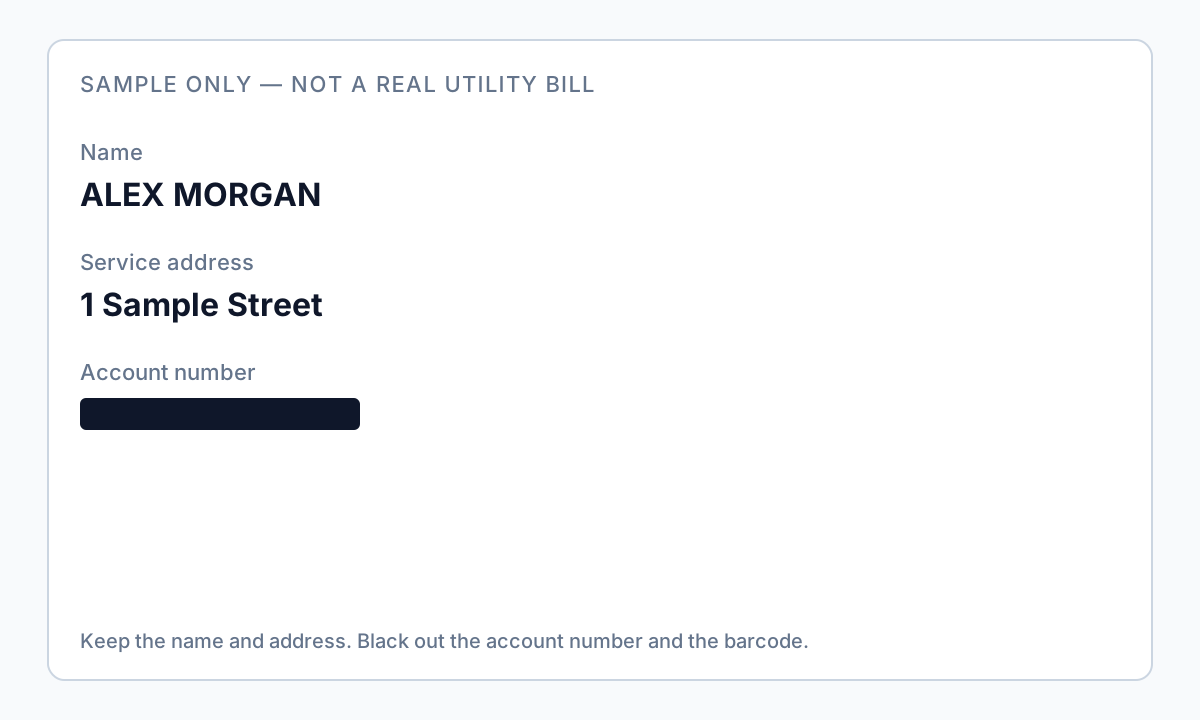
Landlords, banks, and immigration workflows ask for utility bills as proof of address—but the PDF also carries full account numbers, usage charts, payment barcodes, and sometimes a second household member’s name. Rental privacy guides agree: keep your name, service address, and statement date visible; redact account numbers, routing details, and transaction history you do not need to share. The failure mode is redacting the visible account number while leaving the payment stub barcode that encodes the same digits. Try the Invoice / Receipt template online—payment QR/barcodes and contact fields are included. See how to create a redacted bank statement for a similar address-proof workflow with true PDF redaction.
- → What should I redact on a utility bill for my landlord?
- → Can I redact account number but keep address on utility bill?
- → Will a redacted utility bill work as proof of address?
- → Do I need to redact the barcode on my electric bill PDF?
- → How recent must a utility bill be for rental applications?
What landlords and reviewers actually need
| Field | Usually keep visible | Usually redact |
|---|---|---|
| Account holder name | Yes—must match application | Secondary names if not on lease |
| Service address | Yes—this is the proof | Old service address if moved |
| Statement / bill date | Yes—often must be within 30–90 days | — |
| Utility provider logo | Yes—proves issuer | — |
| Full account number | No | Redact; last 2–4 digits only if they require |
| Barcode / QR payment block | No | Redact entire stub band |
| Usage history charts | No | Redact unless requested |
| Prior balance / payment history | No | Reveals financial behavior |
| Autopay bank last-four | No | Redact payment method panel |
Email: “I can provide a bill with name, service address, and date visible, and account number redacted—is that acceptable?” Most reviewers say yes.
Where utility bills leak (beyond page 1)
- Header account number repeated on every page footer.
- Payment stub on page 2 with barcode and remittance address block.
- QR codes for mobile pay linking to account tokens.
- “Budget billing” sections showing annual usage patterns.
- Secondary account holder on joint utility accounts.
- Scanned paper bills: OCR text layer misaligned from visible digits.
Redact the full barcode/QR rectangle on the payment stub—not just the human-readable digits on page 1.
True redaction vs. marker on paper scans
Physical marker on a paper bill then photographed can work if the final PDF is a flat image with no OCR text underneath—but it looks unprofessional for rental packets. Digital PDF from your utility portal plus offline true redaction is cleaner. Never use Preview shapes or Word highlight on portal PDFs without paste-test verification.
Offline workflow
- Download PDF from utility portal (not a screenshot).
- Confirm reviewer date window (often 30–90 days).
- Save utility-original-YYYY-MM.pdf locally.
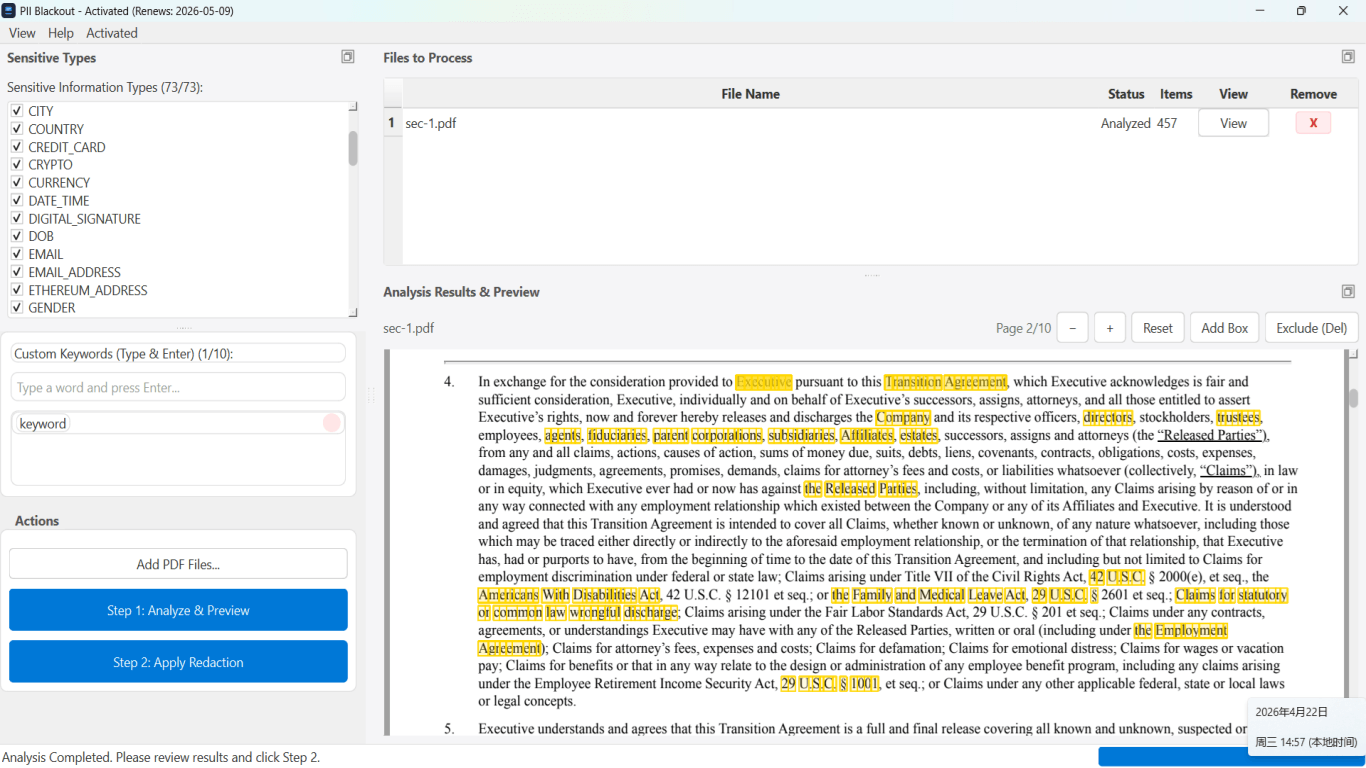
- Auto-detect account numbers, phones, emails; manual box barcodes.
- Keep name, service address, logo, and bill date unredacted.
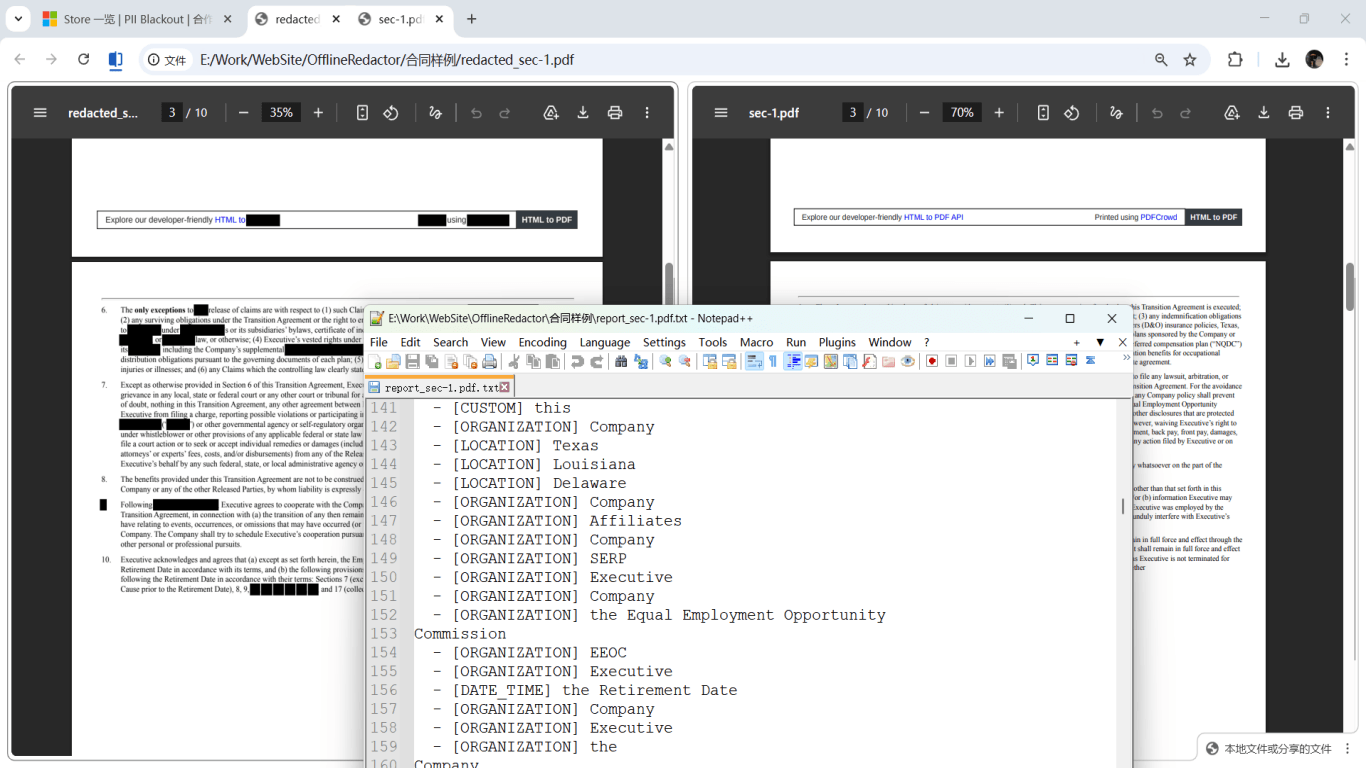
- Apply permanent redaction; export utility-redacted-YYYY-MM.pdf.
- Verify: Find account digits, paste test, visual check on stub page.
- Filename: Lastname_UtilityBill_2026-03.pdf—no full account in name.
Pairing with income docs in rental packets
Landlords often want utility bill plus bank statement or pay stub. Keep names and addresses consistent across documents. If you recently moved, add lease or move-in letter to bridge address changes. Cover email to landlord can note: “Account numbers redacted; name, address, and date complete.”
Step-by-step workflow
- Confirm landlord field requirements and statement date window.
- Download utility PDF from provider portal.
- Save unredacted copy offline.
- Redact full account number, barcode/QR stub, usage charts, payment history.
- Keep name, service address, bill date, and provider branding visible.
- Apply true redaction; verify on page 2 stub.
- Search PDF for account number fragments; paste test.
- Upload via application portal or encrypted email.
Common mistakes
- Sending full bill when only address proof needed
Redact usage and payment history—not required for address verification.
- Redacting service address
Defeats the purpose—only redact account identifiers and financial detail.
- Leaving payment stub barcode
Encodes account number for scanning—redact entire block.
- Screenshot instead of PDF download
Lower quality, harder to redact cleanly, looks less credible to reviewers.
Verification before you share
- ✓ Name, service address, and statement date clearly visible.
- ✓ Account number and barcode not found in search or paste test.
- ✓ Page 2 stub inspected.
- ✓ Bill date within reviewer window.
- ✓ Filename descriptive without account number.
Try the Invoice / Receipt template online
Share a sample invoice safely—the Invoice / Receipt preset covers vendor contact info, payment amounts, and QR/barcodes on receipts.
The Invoice / Receipt template is pre-selected for this guide. Upload a sample file to see detections, then download the desktop app for confidential batch work.
Redact online — Invoice / ReceiptOffline tool option
For bank statements, legal productions, HR files, and other high-risk PDFs, desktop software that runs offline PII removal lets you auto-detect identifiers, review matches, and apply permanent redaction without uploading to the cloud. PDF redaction hub and Bulk PII redaction helps when you have entire folders—not one file at a time.
Download Free TrialFAQ
Will a redacted utility bill satisfy my landlord?
Most accept bills with name, address, and date visible and account number redacted—confirm with them first.
Can I show last four digits of account number?
Only if they require it and redaction permanently removed full digits from the file—not visual masking with hidden text.
Does phone/internet bill count as utility?
Many landlords accept telecom bills with service address—same redaction rules for account numbers and barcodes.
How is this different from redacting a bank statement?
Address proof keeps location visible; bank statements focus on redacting accounts while keeping deposits—see our bank statement guide.