Powered by Smartsupp

How to Redact Emails and Email Headers

Emails contain hidden metadata beyond visible content.

Redaction is not the same as hiding. When people search "How to Redact Emails and Email Headers", they often mean “make it unreadable”. In high-risk workflows, you need true redaction: permanently removing the underlying content so it cannot be recovered through copy/paste, text extraction, or layer inspection.

This matters because emails contain hidden metadata beyond visible content. Your goal should be to share the document’s value while minimizing disclosure. A good rule is “minimum necessary”: keep only what the recipient needs for the task, and remove everything else that increases risk.

A common failure mode is using visual overlays. Many tools let you draw rectangles, highlight, or blur. Those operations may only change the appearance, while the original text stays in the file. In contrast, a secure workflow removes text objects, flattens or re-renders the output when needed, and treats metadata as part of the attack surface.

Offline workflows are preferred when documents contain PII or PHI, because uploads introduce additional exposure: retention policies, third-party access, and accidental sharing. If you must use online tools, review policies carefully and never upload regulated data without approval.

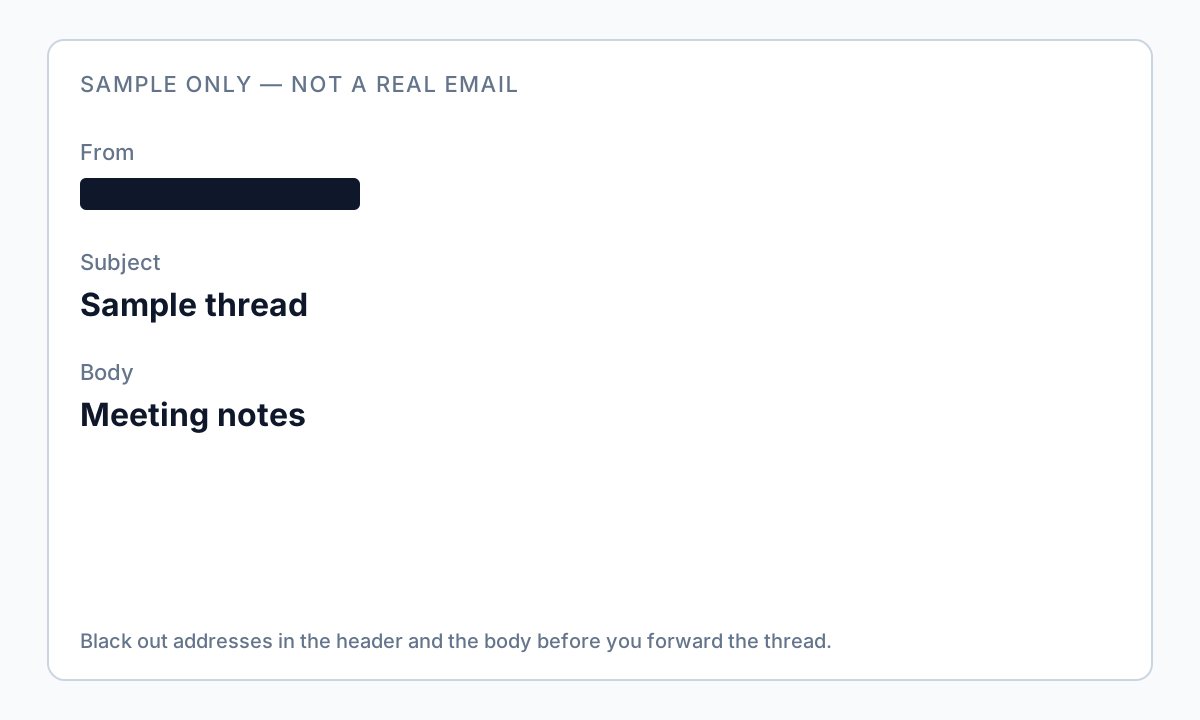
Emails are not only the visible message body. Headers include routing details and infrastructure metadata. If you share emails as evidence, sanitize both the content and the structured metadata so you don’t leak IPs or internal routing information.

Start by defining the recipient and the exact purpose of sharing. The same document may require different redaction depending on whether it’s shared with a client, a vendor, a court, or an internal team. Write down what must remain visible and treat everything else as a candidate for removal.

A practical way to reduce errors is to turn redaction into a checklist-driven process. Identify all sensitive fields first, then redact, then verify. This is especially important when the risk items include Email addresses, IP headers, Routing information.

Avoid partial redaction such as leaving “just the last 4 digits” without considering context. In many workflows, partial identifiers can still be combined with other data to re-identify a person or an account.

Most failures happen during export. A workflow can look correct on screen but still produce a file where the original text exists in the document structure. Treat “export” as part of the redaction process, and test the final file before sharing.

Metadata is not optional. Even if the visible page looks clean, PDFs can store author names, editing tools, timestamps, and hidden fields. If one of your common mistakes is "Ignoring email headers, Only deleting visible text", add metadata sanitization as a required step, not a nice-to-have.

If you process many files, standardize rules and naming. Run a small pilot batch, verify the outputs, then scale. Batch processing reduces time but increases blast radius if the rules are wrong, so your verification step must scale with volume.

What information is risky in this document?

Start by identifying the data that could directly identify a person, link to an account, or reveal internal business context. For redact email, common risks include:

  • Email addresses
  • IP headers
  • Routing information

Common mistakes to avoid

Most redaction failures are procedural: doing the right-looking action with the wrong tool, or skipping verification. Watch out for:

  • Ignoring email headers
  • Only deleting visible text

Step-by-step: a safer workflow

  1. Inspect headers and attachments, not only the email body.
  2. Define the sharing goal and minimum necessary information.
  3. List what to redact based on your document type (for example: Email addresses, IP headers, Routing information).
  4. Locate all occurrences (including repeated identifiers and footers/headers).
  5. Avoid “visual-only” masking tools; use true redaction that removes underlying content.
  6. Sanitize document metadata and hidden fields before exporting the final file.
  7. Verify the output: search/select/copy where redaction occurred and confirm nothing is recoverable.
  8. Export to a new file name and keep an original copy stored securely.
  9. Perform a final spot check with a second reviewer for high-risk workflows.

Verification checklist

Treat verification as part of the workflow. If you can still recover content after export, the redaction failed. Use this checklist before sharing:

  • Inspect headers and attachments; redact structured metadata, not only visible lines.
  • Search the output for repeated identifiers and confirm results are empty.
  • Try selecting and copying a redacted area; confirm no original text is retrievable.
  • Check for hidden layers, comments, attachments, or form fields.
  • Review document properties to ensure metadata does not reveal author/history.
  • Re-open the exported file on a different machine/viewer to confirm the same result.
  • Verify that page headers/footers were included in the scan.
  • For batch workflows, spot-check multiple files across the folder (first, middle, last).
  • Keep an original copy stored securely; share only the redacted export.

A safer solution

Remove both visible content and structured email metadata. In practice, the safest workflow combines detection (finding all occurrences), true redaction (removing underlying content), and verification (confirming the output is not recoverable).

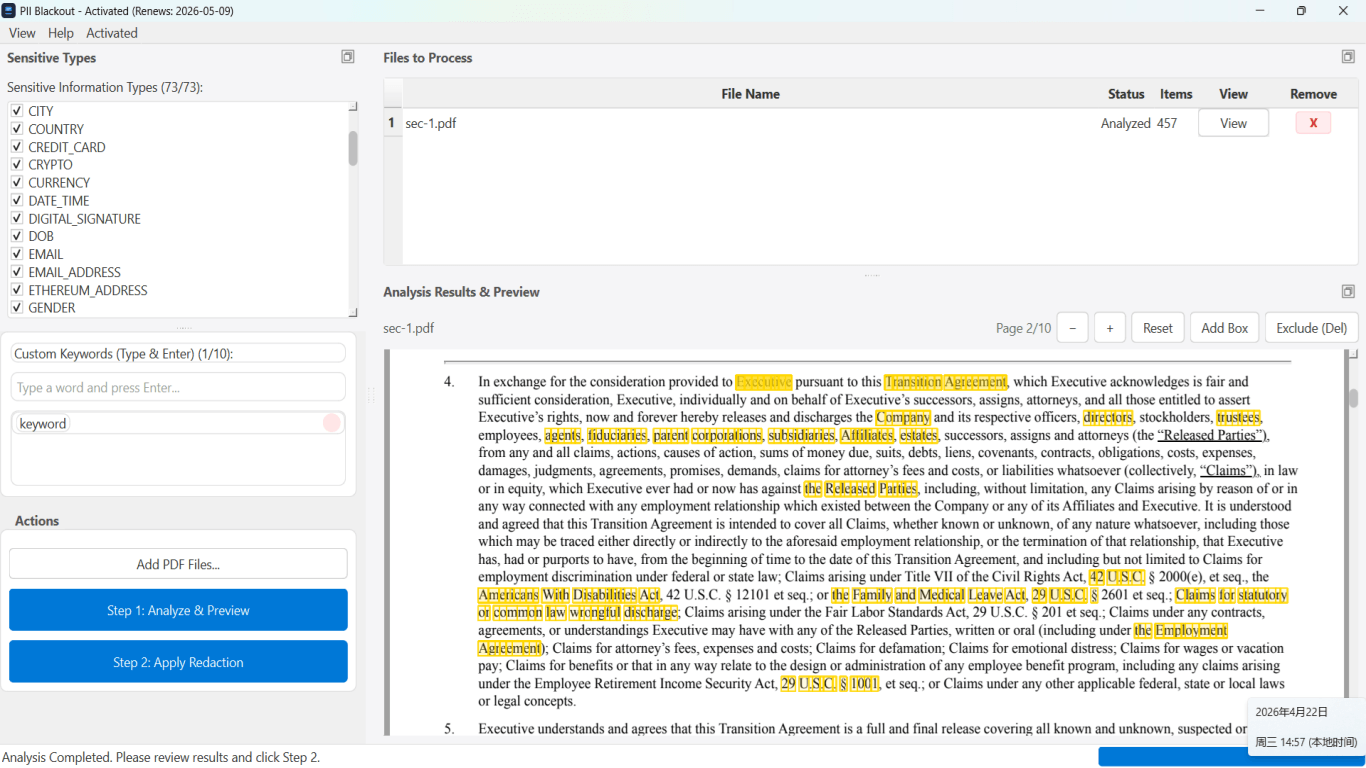
PII Blackout is designed for offline redaction workflows so sensitive documents stay on your computer. It supports detection across many sensitive data types and custom keywords, making batch processing more consistent.

FAQ

Do I need to redact email headers?
Often yes. Headers can contain routing information, sender IPs, and other metadata that can reveal identities and infrastructure details.
Is it safe to redact a PDF online for "Redact Emails and Email Headers"?
It depends on your data sensitivity. Uploading documents to free websites can introduce privacy and compliance risk. For PII/PHI workflows, prefer offline redaction and verify the final output.
Is drawing a black box enough?
Not always. If the tool only overlays content visually, the underlying text can remain recoverable. True redaction should remove underlying text/objects and produce a sanitized output file.
Should I remove metadata too?
Yes for sensitive documents. Metadata (author, history, hidden fields) can leak information even when visible content looks clean.
Prefer offline redaction?

Download PII Blackout and keep sensitive documents on your computer while you redact.

Download Free Trial