
Aktualisiert 2026-10-21
PDF unscharf machen, ohne Text preiszugeben
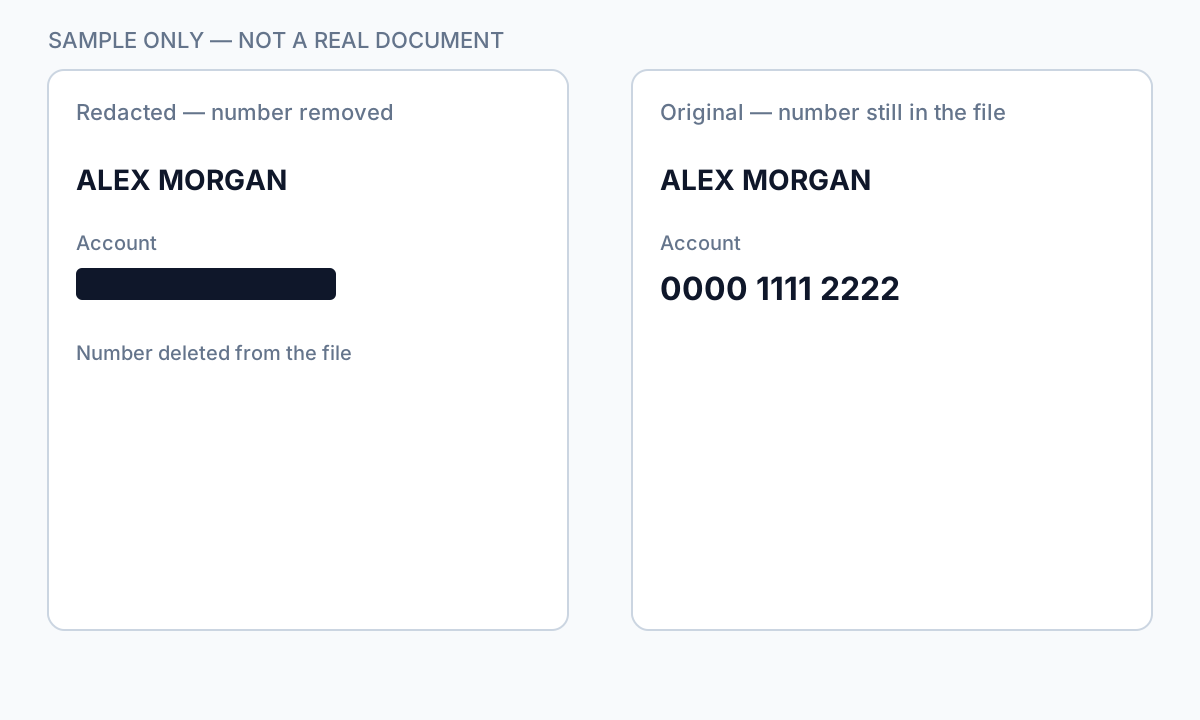
Wer ein PDF unschärfen möchte, will in der Regel Namen, Gesichter oder Kontonummern vor dem Teilen verbergen. Unschärfefilter ändern, wie Pixel auf dem Bildschirm aussehen—aber in textbasierten PDFs bleiben die zugrunde liegenden Zeichen oft in der Dateistruktur erhalten. Entschärfungs-Tools, OCR und Kopieren/Einfügen können wiederherstellen, was sicher verdeckt wirkte. Dieser Leitfaden erklärt, wann Unschärfe hilft (Fotos, gescannte Bereiche), wann sie scheitert (auswählbarer Text) und wie Sie zu echter Schwärzung oder zum Schwärzen von Informationen in einem PDF für PII wechseln.
- → How do I blur text on a PDF?
- → Is blurring a PDF the same as redacting?
- → Can blurred PDF text be recovered?
- → Blur PDF online— is it safe for bank statements?
- → Should I blur or black out sensitive PDF text?
Blur vs redaction
| Method | Visual effect | Text extractable? |
|---|---|---|
| Gaussian blur on text layer | Soft edges | Often yes — text still in PDF |
| Blur on flat image scan | Pixel smear | Usually no — if no OCR layer added |
| Black box overlay | Hard cover | Yes — classic copy-paste leak |
| True redaction (Apply) | Solid black | No — content removed from stream |
If Ctrl+A → Copy → Paste returns readable text, blur did not protect the data.
When blur is acceptable
- Obscuring faces in photos embedded in PDF pages (plus verify no text caption names).
- Casual sharing where recovery risk is low and content is image-only.
- Draft review watermarks—not final production to opposing counsel.
For SSNs, account numbers, medical IDs, and legal party names, use true redaction—not blur tools marketed as “blur PDF online.”
Secure alternative workflow
- Identify whether PDF is text-native or scan/image.
- For text PDFs: use redaction with Apply, not blur.
- For scans: redact then export flat image if required.
- Verify with paste test and Find search.
- Scrub metadata before external share.
Schritt-für-Schritt-Workflow
- Determine if PDF has selectable text under the region.
- If yes, abandon blur—use true redaction.
- If image-only, blur or redact pixels then flatten export.
- Run Ctrl+A paste test.
- Search output for redacted strings.
Häufige Fehler
- Using blur for bank or tax PDFs
Text layer survives most blur effects.
- Online blur upload for client files
Full document leaves your device—use offline redaction.
Prüfung vor dem Teilen
- ✓ Paste test returns no sensitive text.
- ✓ No OCR text layer under blurred image regions.
- ✓ Metadata scrubbed for external share.
Offline-Tool-Option
Für Bankauszüge, juristische Produktionen, HR-Dateien und andere risikoreiche PDFs erkennt Desktop-Software mit Offline-PII-Entfernung Kennungen automatisch, lässt Sie Treffer prüfen und permanente Schwärzung ohne Cloud-Upload anwenden. PDF-Schwärzungs-Hub und Massen-PII-Schwärzung helfen bei ganzen Ordnern—nicht Datei für Datei.
Kostenlose Testversion ladenFAQ
Can I blur a PDF for free online?
You can, but free blur tools rarely remove underlying text and often require upload. Not suitable for regulated PII.
Is blur better than a black box?
Neither removes text in a native PDF. True redaction removes content; overlays and blur only change appearance.