
Bijgewerkt 2026-10-21
PDF-tekst zwart maken zodat die niet gekopieerd kan worden
Als u zocht hoe informatie in een PDF zwart te maken—of black out info on PDF vóór u een bankafschrift of contract mailt—heeft u meer nodig dan een zwart rechthoek. De meeste tools dekken tekst alleen visueel; de onderliggende inhoud blijft vaak kopieerbaar. Deze gids toont hoe u informatie in een PDF op de juiste manier zwart maakt, de export verifieert en wanneer een gratis download blackout PDF beter is dan riskante online upload-editors. Voor de volledige workflow, zie hoe een PDF te redigeren.
- → How do I blackout a PDF / black out text in PDF?
- → How to black out information on a PDF without the text coming back?
- → Black out PDF—does Preview or a free online tool work?
- → How do I black out only part of a page—not the whole document?
- → Is there a free blackout PDF download that actually removes text?
Black out vs. redact: not the same thing
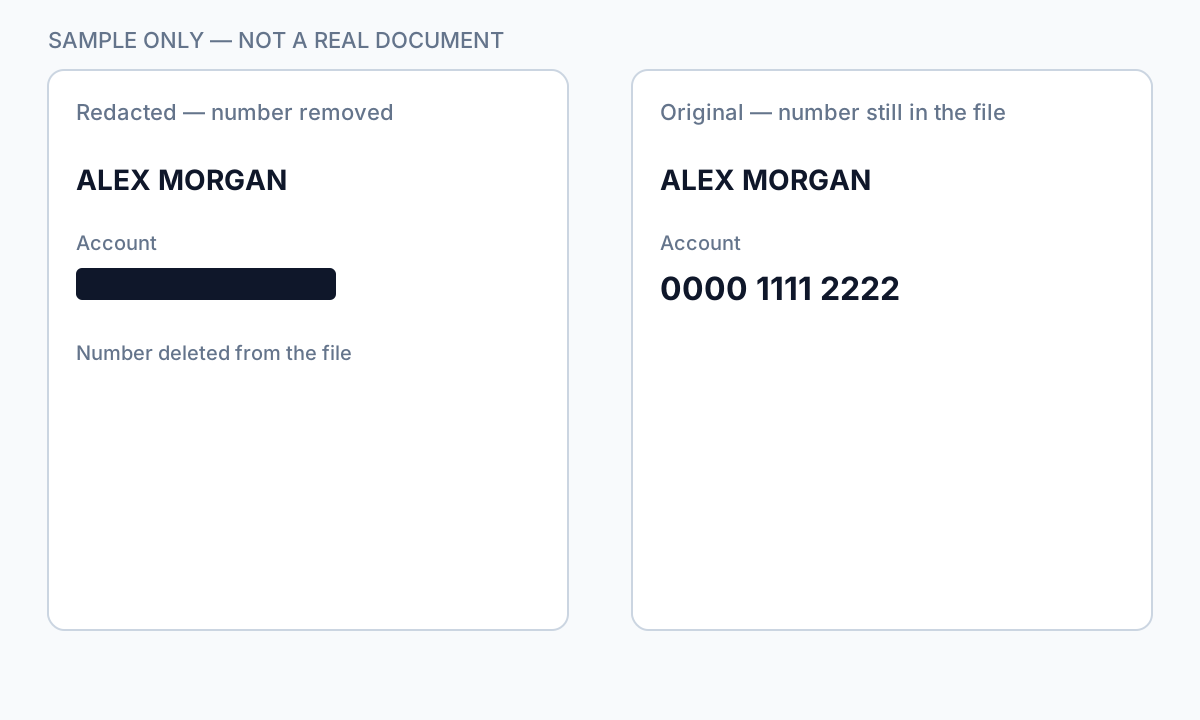
A PDF stores text as drawing instructions in a content stream. When you black out with a shape tool, you append “draw black rectangle here”—but the original character instructions remain. Text extractors and Ctrl+A ignore your rectangle. True redaction deletes or burns those instructions so recovery fails.
Open your exported PDF → Select All → Copy → Paste into Notepad. If any hidden word appears, you have visual blackout only. Do not send the file.
Which parts people black out most often
- Single contract lines (pricing, party name) while keeping the rest readable
- Account and routing numbers on bank statements
- SSN blocks on tax or HR forms
- Email addresses and phone numbers in discovery productions
- Signatures and photos on ID scans
- Chart data labels in financial reports while keeping axis titles
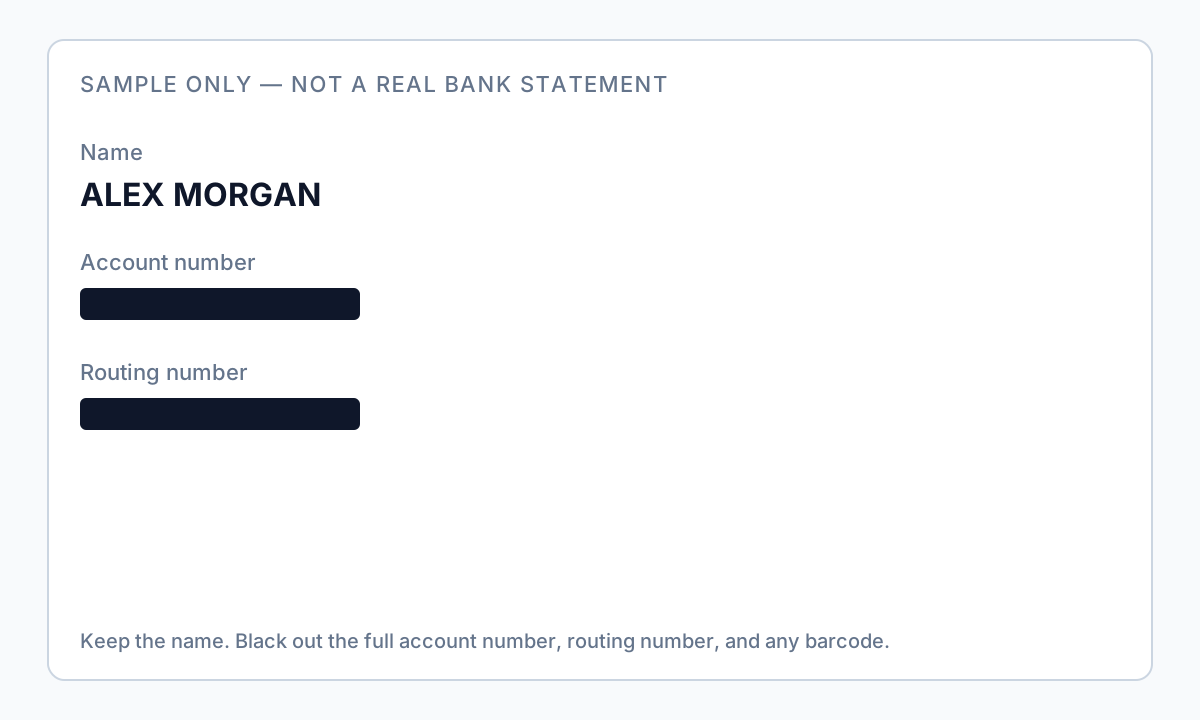
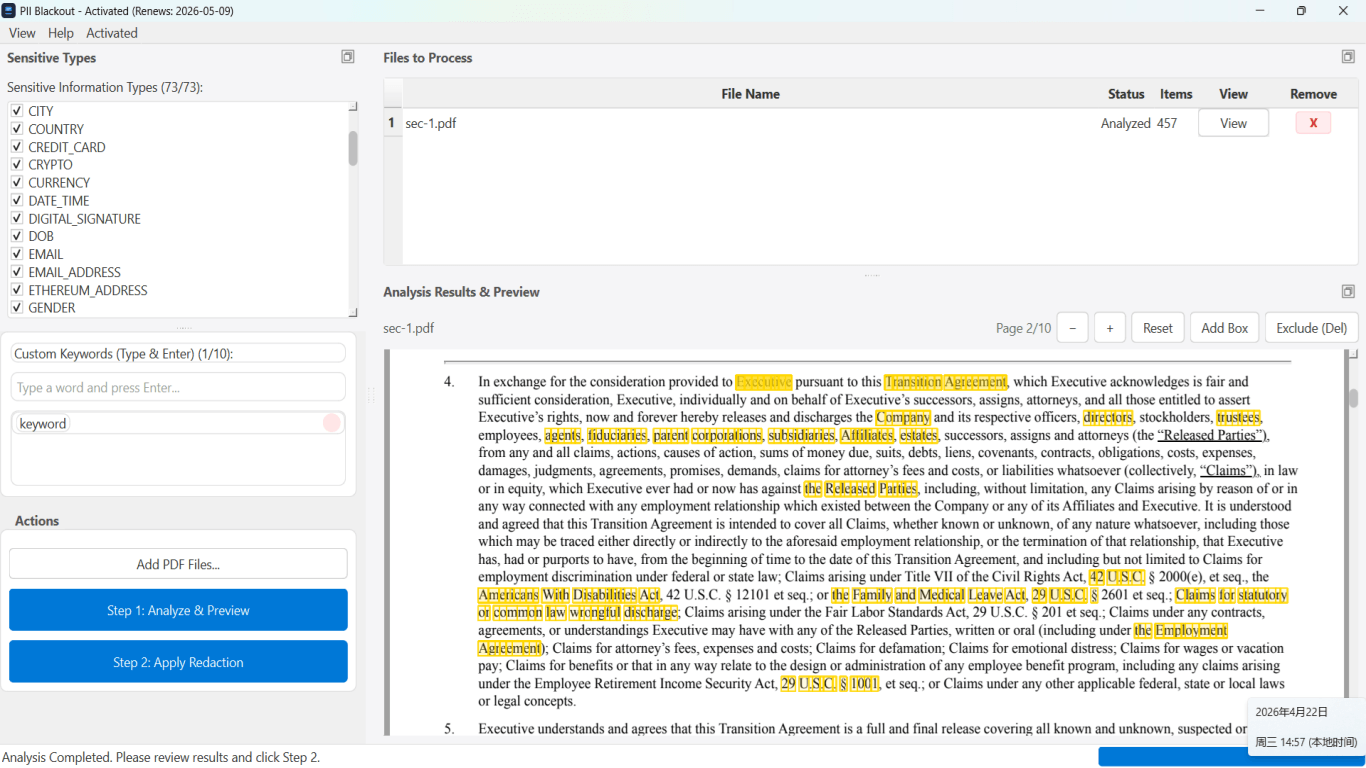
Partial redaction means more manual review: auto-detection finds candidates; you deselect what should stay visible, draw boxes for missed regions, then apply once for the whole file.
Tool comparison (partial blackout)
| Method | Black out part of page? | Text stays extractable? |
|---|---|---|
| Mac Preview shapes | Yes | Usually yes — fails Ctrl+A test |
| Free online PDF editor | Yes | Often yes; file uploaded to third party |
| Adobe Redact → Apply | Yes | No — if Apply completed |
| Offline auto-detect + manual boxes | Yes | No — after verified export |
Step-by-step safe workflow
- Define what the recipient needs to see—minimum necessary only.
- Inventory sensitive data: names, emails, phones, IDs, account numbers.
- Find every occurrence in body, headers, footers, tables.
- Apply true redaction—not paint rectangles.
- Export new file; never overwrite original.
- Verify: search, copy/paste, second viewer.
Scanned PDFs and metadata
Scanned PDFs may need OCR before detection. After redaction, scrub metadata—author names and hidden layers can leak even when the visible page looks clean. See our remove metadata guide after content redaction.
Stapsgewijze workflow
- Define minimum necessary fields for recipient.
- Save original; work on copy.
- Run auto-detection or manual mark for sensitive regions only.
- Deselect regions that must stay visible.
- Apply true redaction; export new PDF.
- Ctrl+A paste test + Find search for redacted strings.
- Scrub metadata on high-risk exports.
- Send via secure channel.
Veelgemaakte fouten
- Drawing shapes instead of redacting
Overlay leaves extractable text—most common blackout failure.
- Redacting one occurrence, missing footers
Account numbers repeat on every page footer.
- Skipping verification because it looks black
Visual appearance identical for overlay vs true redaction.
Controle vóór delen
- ✓ Search output for redacted names/IDs: zero hits.
- ✓ Copy from redacted area: nothing meaningful pastes.
- ✓ Document Properties reviewed or scrubbed.
- ✓ Second viewer confirms same behavior.
Offline-tooloptie
Voor bankafschriften, juridische producties, HR-bestanden en andere risicovolle PDF’s detecteert desktopsoftware met offline PII-verwijdering identifiers, laat u matches controleren en permanente redactie toepassen zonder cloud-upload. PDF-redactiehub en bulk PII-redactie helpen bij hele mappen.
Gratis proefversie downloadenFAQ
How do I black out information on a PDF?
Use true redaction (Apply or offline desktop tool)—not draw shapes. Mark sensitive regions, apply permanent removal, export a new file, then run Ctrl+A → Copy → Paste into Notepad to verify nothing hidden comes back.
How do I black out info on a PDF for free?
Mac Preview Redact (Sonoma+) or Adobe trial can work if you verify the paste test. For bank statements and PII, a free trial desktop download keeps files offline—see our free redaction guide and download page.
Is “black out text in PDF” the same as redaction?
Not always. True redaction removes underlying content; many blackout methods only cover it visually.
What if the PDF is scanned?
May require OCR for detection; still need burn-in or true redaction on final export.
- Hoe tekst in een PDF wit te maken
- Een PDF vervagen zonder tekst te lekken
- Hoe een PDF te redigeren
- Hoe een PDF gratis te redigeren
- Hoe metadata uit PDF te verwijderen
- Kan zwartgemaakte tekst in een PDF worden hersteld?
- Geredigeerd bankafschrift: wat zwart maken
- Hoe een PDF zonder Adobe te redigeren
- Hoe een gescande PDF te redigeren (OCR vereist)