
Aggiornato 2026-10-21
Sfocare un PDF senza far trapelare il testo
Chi cerca di sfocare un PDF di solito vuole nascondere nomi, volti o numeri di conto prima di condividere. I filtri di sfocatura cambiano i pixel a schermo—ma nei PDF basati su testo i caratteri sottostanti restano spesso nella struttura del file. Strumenti di deblurring, OCR e copia-incolla possono recuperare ciò che sembrava oscurato. Questa guida spiega quando lo sfocato aiuta (foto, aree scansionate), quando fallisce (testo selezionabile) e come passare alla redazione vera o all’annerimento di informazioni in un PDF per i PII.
- → How do I blur text on a PDF?
- → Is blurring a PDF the same as redacting?
- → Can blurred PDF text be recovered?
- → Blur PDF online— is it safe for bank statements?
- → Should I blur or black out sensitive PDF text?
Blur vs redaction
| Method | Visual effect | Text extractable? |
|---|---|---|
| Gaussian blur on text layer | Soft edges | Often yes — text still in PDF |
| Blur on flat image scan | Pixel smear | Usually no — if no OCR layer added |
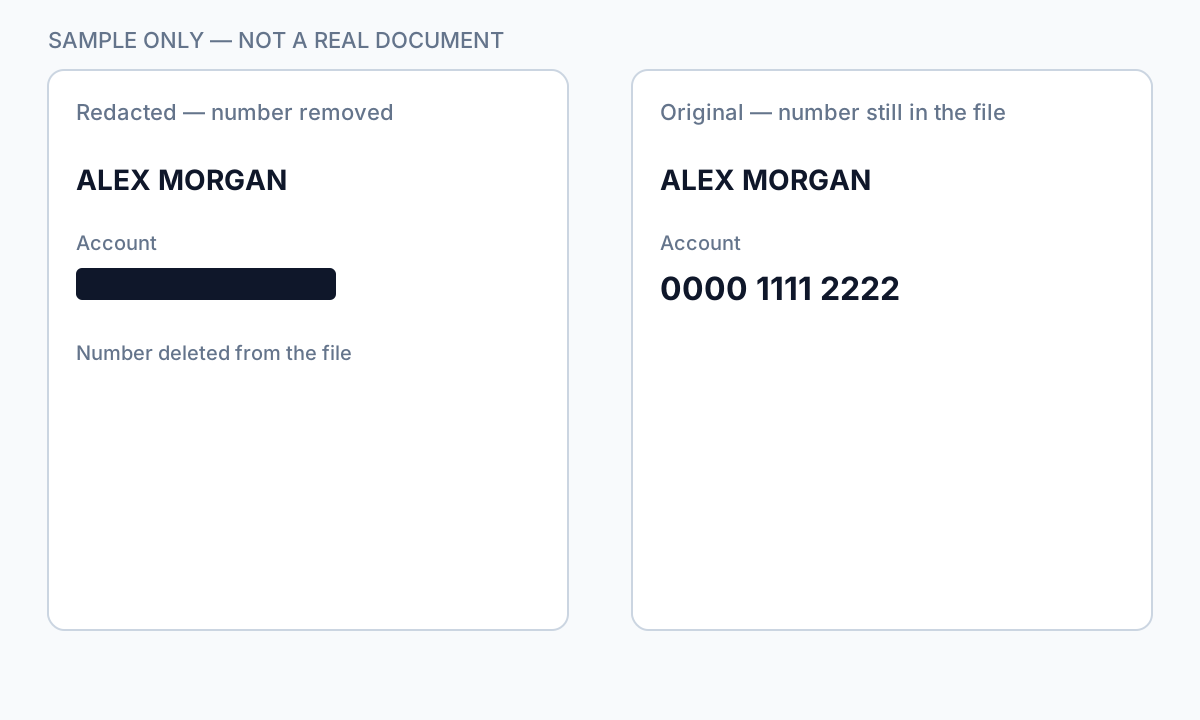
| Black box overlay | Hard cover | Yes — classic copy-paste leak |
| True redaction (Apply) | Solid black | No — content removed from stream |
If Ctrl+A → Copy → Paste returns readable text, blur did not protect the data.
When blur is acceptable
- Obscuring faces in photos embedded in PDF pages (plus verify no text caption names).
- Casual sharing where recovery risk is low and content is image-only.
- Draft review watermarks—not final production to opposing counsel.
For SSNs, account numbers, medical IDs, and legal party names, use true redaction—not blur tools marketed as “blur PDF online.”
Secure alternative workflow
- Identify whether PDF is text-native or scan/image.
- For text PDFs: use redaction with Apply, not blur.
- For scans: redact then export flat image if required.
- Verify with paste test and Find search.
- Scrub metadata before external share.
Flusso passo passo
- Determine if PDF has selectable text under the region.
- If yes, abandon blur—use true redaction.
- If image-only, blur or redact pixels then flatten export.
- Run Ctrl+A paste test.
- Search output for redacted strings.
Errori comuni
- Using blur for bank or tax PDFs
Text layer survives most blur effects.
- Online blur upload for client files
Full document leaves your device—use offline redaction.
Verifica prima di condividere
- ✓ Paste test returns no sensitive text.
- ✓ No OCR text layer under blurred image regions.
- ✓ Metadata scrubbed for external share.
Opzione strumento offline
Per estratti conto, produzioni legali, file HR e altri PDF ad alto rischio, il software desktop con rimozione PII offline rileva identificatori, consente di rivedere le corrispondenze e applicare redazione permanente senza upload cloud. hub redazione PDF e redazione PII in blocco aiutano con cartelle intere.
Scarica prova gratuitaFAQ
Can I blur a PDF for free online?
You can, but free blur tools rarely remove underlying text and often require upload. Not suitable for regulated PII.
Is blur better than a black box?
Neither removes text in a native PDF. True redaction removes content; overlays and blur only change appearance.