
Aggiornato 2026-06-06
Come redigere un PDF senza Adobe
Adobe Acrobat Pro è la risposta predefinita per la redazione PDF—ma a circa 20 $/mese a seat, avvocati solo, locatori che preparano pacchetti inquilini e contabili di piccole imprese cercano alternative. Nei forum compare lo stesso schema: qualcuno ha annerito un estratto in Anteprima Mac o su un sito gratuito, l’ha inviato e ha scoperto che il destinatario poteva ancora copiare il testo “nascosto”. Questa guida confronta cosa fa davvero ogni alternativa Adobe ai dati PDF sottostanti, quando lo strumento Redact di Anteprima su Sonoma basta e quando serve software desktop offline—vedi anche redigere un PDF in Adobe e rischi della redazione PDF online.
- → How do I redact a PDF for free without Adobe Acrobat Pro?
- → Does Mac Preview actually redact PDFs or just cover text?
- → Is it safe to use online PDF redaction websites for client files?
- → What is the difference between Adobe Reader and Acrobat Pro for redaction?
- → What Windows tools redact PDFs permanently without a subscription?
What “redaction” must mean (regardless of tool)
True redaction removes or destroys the underlying text and image data in the PDF content stream—not a black rectangle drawn on top. Overlay tools (highlighter, Comment shapes, most “black out PDF online” uploaders) leave recoverable text. Security researchers and journalists routinely extract “redacted” court filings this way within minutes.
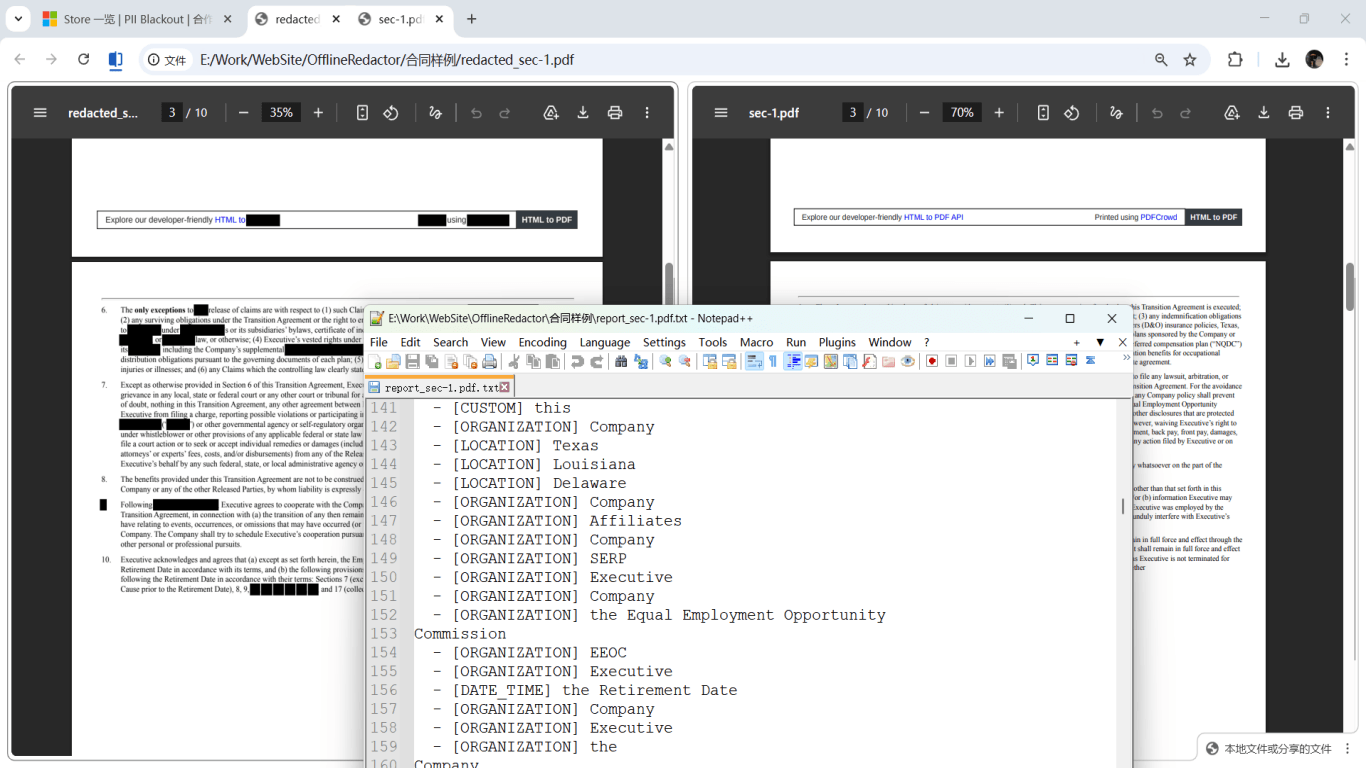
After export: Select All (Ctrl+A / Cmd+A) → Copy → Paste into Notepad. Search the PDF for a word you redacted. If anything comes back, your tool did not redact—it masked. Try a different method before sending regulated data.
Adobe Acrobat Pro passes when you use Tools → Redact → Mark for Redaction → Apply Redactions (not just draw boxes) and optionally Sanitize. Adobe Acrobat Reader—the free viewer—has no Redact tool at all. Highlight and Comment tools in Reader are overlays, not redaction.
Tool comparison without Adobe
| Tool | True redaction? | Uploads file to cloud? | Best for |
|---|---|---|---|
| Mac Preview Redact (macOS Sonoma 14+) | Yes, for visible content on page | No | Quick one-off redactions on modern Macs; verify with copy test |
| Mac Preview shapes / Monterey and older | No — overlay only | No | Do not use for SSN, bank, or legal data |
| Free “redact PDF online” sites | Varies; often overlay | Yes — full document leaves your device | Avoid for client, financial, or health files |
| Foxit PDF Editor (paid) / Smart Redact trial | Yes, with Apply step | No (desktop) | Teams already on Foxit instead of Adobe |
| PDF-XChange Editor (Windows, paid) | Yes, redaction module | No | Windows shops wanting Acrobat-like workflow |
| Offline PII redaction desktop app | Yes + auto-detect SSN/account patterns | No | Batch statements, HR files, discovery prep without Adobe seats |
| Print → marker → scan / image flatten | Yes if final PDF has no text layer | No | One-off paper workflow; slow for multi-file jobs |
Apple added a dedicated Redact tool in macOS Sonoma that removes underlying text for content you mark. Independent tests still found edge cases: invisible off-page text, partial letter fragments, and no built-in metadata sanitization like Acrobat’s Sanitize. For high-stakes legal or financial files, verify with the copy test and consider metadata scrubbing in a second pass.
Mac Preview: Sonoma Redact vs. the old workarounds
On macOS Sonoma (14.0) and later, choose Tools → Redact, select text or draw a box, then save. Use File → Save As so you keep an unredacted original. Apple Community threads show users on Sequoia who see redaction boxes disappear on save—often because the PDF author restricted modifications, or they used markup shapes instead of the Redact tool state.
- Confirm you toggled Tools → Redact (tool stays active until you turn it off).
- If Save drops redactions, check Document Permissions (File may be read-only or modification-locked).
- On Monterey/Ventura or older: Preview cannot truly redact—use Adobe alternative or flatten via Print → Save as PDF after image export (Apple Stack Exchange workaround).
- Never use black rectangle shapes from the markup toolbar for sensitive data—they are reversible annotations.
Eclectic Light Company and other Mac-focused security notes warn that Preview redacts only what it “sees” on the page—hidden text positioned off-canvas or in metadata may survive. Court-facing work still favors Acrobat Sanitize or offline tools that strip metadata on export.
Windows and cross-platform Adobe replacements
Foxit PDF Editor and PDF-XChange Editor on Windows include redaction workflows comparable to Acrobat: mark regions, apply redactions, export. Read the docs carefully—some “Protect” features apply passwords without removing text. Nitro PDF and similar enterprise tools also qualify if Apply permanently deletes content streams.
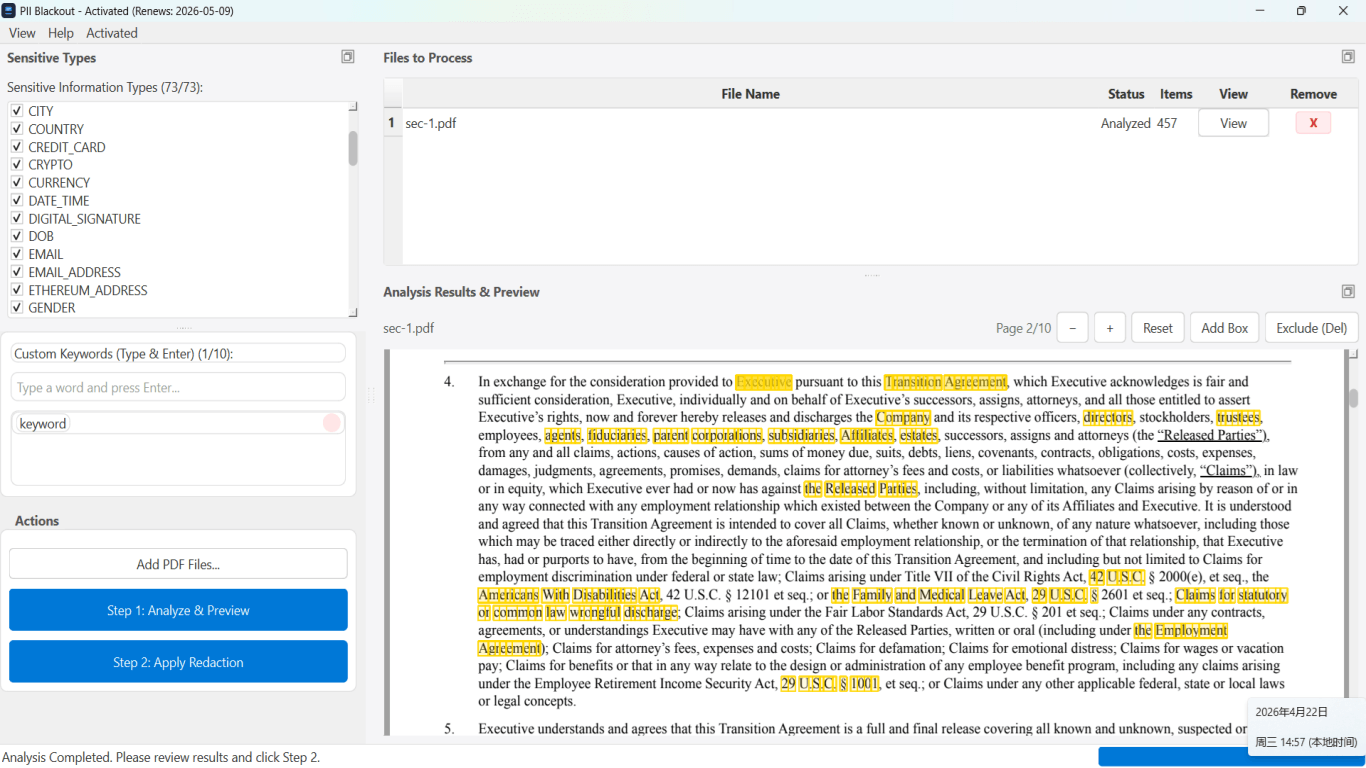
Open-source PDFsam and lightweight “PDF Redactor” style apps exist for basic permanent blackout. Trade-off: you draw every box manually. For a 40-page bank statement with account numbers in footers, auto-detection saves hours and catches repeats humans miss.
Why we avoid browser upload redactors for sensitive PDFs
Xodo, Smallpdf, iLovePDF, and similar services are convenient for non-sensitive markup. For client contracts, payroll, medical records, or discovery productions, uploading means copies traverse third-party servers with retention policies you do not control. Some claim immediate deletion; you still cannot audit their pipeline. Offline desktop processing keeps files on your machine—aligned with how solo law firms and SMBs handle data without enterprise DLP.
Acrobat Pro trials work for one urgent production, but recurring monthly statements or HR packets need a sustainable tool. Budget for Foxit, PDF-XChange, or an offline PII redactor if Adobe seats are too expensive—not a rotation of free trials.
Recommended workflow without Adobe
- Save an unredacted copy in a folder you never email.
- Pick a tool from the table above that performs Apply/true redaction—not annotation.
- Run auto-detection for SSN, email, phone, account, and routing patterns if available.
- Manually box regions algorithms miss (signatures, barcodes, handwritten notes).
- Apply redaction; export as a new filename (e.g., contract-redacted-2026-06.pdf).
- Ctrl+A paste test + Find search for a known sensitive string.
- Scrub metadata (Author, Creator, embedded attachments) when your tool supports it.
- Send via encrypted channel; keep audit note of what was shared.
Flusso passo passo
- Confirm you are not using Adobe Reader alone—it cannot redact.
- Check macOS version: Sonoma+ Preview Redact vs. older Mac needing a different tool.
- Choose offline desktop redaction with Apply/true removal—not highlight or shape tools.
- Import PDF; run PII auto-detection if the tool supports it.
- Review every page; add manual boxes for non-pattern secrets (handwriting, barcodes).
- Apply permanent redaction; Save As to a new file.
- Verification: Ctrl+A copy-paste test, Find for redacted strings, second PDF reader check.
- Optional: metadata sanitization pass.
- Transmit redacted copy; archive original offline.
Errori comuni
- Using Preview markup shapes on any macOS version
Black rectangles from the annotation toolbar are reversible. Only the dedicated Redact tool on Sonoma+ removes underlying text—and even then, verify edge cases.
- Assuming “PDF Editor Pro” in the name includes redaction
Many editors merge, split, and annotate without deleting content streams. Read whether the feature says Apply Redactions or Remove Content.
- Uploading client files to free online redactors
Convenience trades away control of retention. One payroll PDF upload exposes every employee on the file.
- Print to PDF without verifying the text layer
Some Print workflows preserve hidden OCR text from the source. After export, confirm you cannot select redacted content.
- Skipping verification because it “looks black”
Visual appearance is identical for overlay and true redaction. Only copy-paste and search tests reveal the difference.
Verifica prima di condividere
- ✓ Ctrl+A → Copy → Paste into Notepad: zero sensitive strings.
- ✓ Find/Search in PDF for a redacted name or account fragment: no hits.
- ✓ Opened in a second viewer (Edge, Chrome, Foxit) with same result.
- ✓ No editable annotation layers sitting on top of redacted areas.
- ✓ Metadata Author/Creator cleared if sanitized.
- ✓ Original unredacted file not attached to the same email thread.
Opzione strumento offline
Per estratti conto, produzioni legali, file HR e altri PDF ad alto rischio, il software desktop con rimozione PII offline rileva identificatori, consente di rivedere le corrispondenze e applicare redazione permanente senza upload cloud. hub redazione PDF e redazione PII in blocco aiutano con cartelle intere.
Scarica prova gratuitaFAQ
Is there a completely free way to redact PDFs securely?
Sonoma+ Preview Redact is free on Mac for true removal of marked visible content—after verification. Windows users may use trial periods or manual open-source redactors. For recurring sensitive work, a paid desktop alternative or offline PII tool is usually worth the cost versus risk.
Does Mac Preview redact on Sequoia?
Sequoia includes the Redact tool introduced in Sonoma. Use Tools → Redact, not markup shapes. If redactions disappear on save, the PDF may block modifications—try a different tool or export workflow.
Can I redact with Microsoft Word or Google Docs?
Only if you export to a flat image PDF with no selectable text—and verify. Word text boxes and highlights are overlays like Preview shapes. For native PDFs, use a PDF redaction tool.
Is Foxit a good Adobe replacement?
Foxit PDF Editor’s redaction module with Apply is a common Acrobat substitute on Windows. Confirm you use redaction, not just password protection or markup.
When should I just buy Adobe anyway?
If you already live in Acrobat for Bates stamping, portfolio assembly, and court-required Sanitize workflows, adding seats may be cheaper than retraining. If you mainly redact PII from statements and HR PDFs locally, offline auto-detection tools often replace Acrobat at lower cost.
- Come redigere un PDF in Adobe Acrobat
- Come redigere un PDF
- Annerire il testo di un PDF così non si può copiare
- Redazione PDF online: rischi e alternative più sicure
- Best practice per la redazione dei documenti
- Redigere un PDF in Anteprima su Mac
- Come redigere un PDF gratis
- Come redigere PDF in batch
- Estratto conto redatto: cosa annerire
- Come redigere un PDF scansionato (OCR richiesto)
- Redigere PDF finanziari: cosa annerire