
Actualizado 2026-06-06
Cómo redactar un PDF en Adobe Acrobat
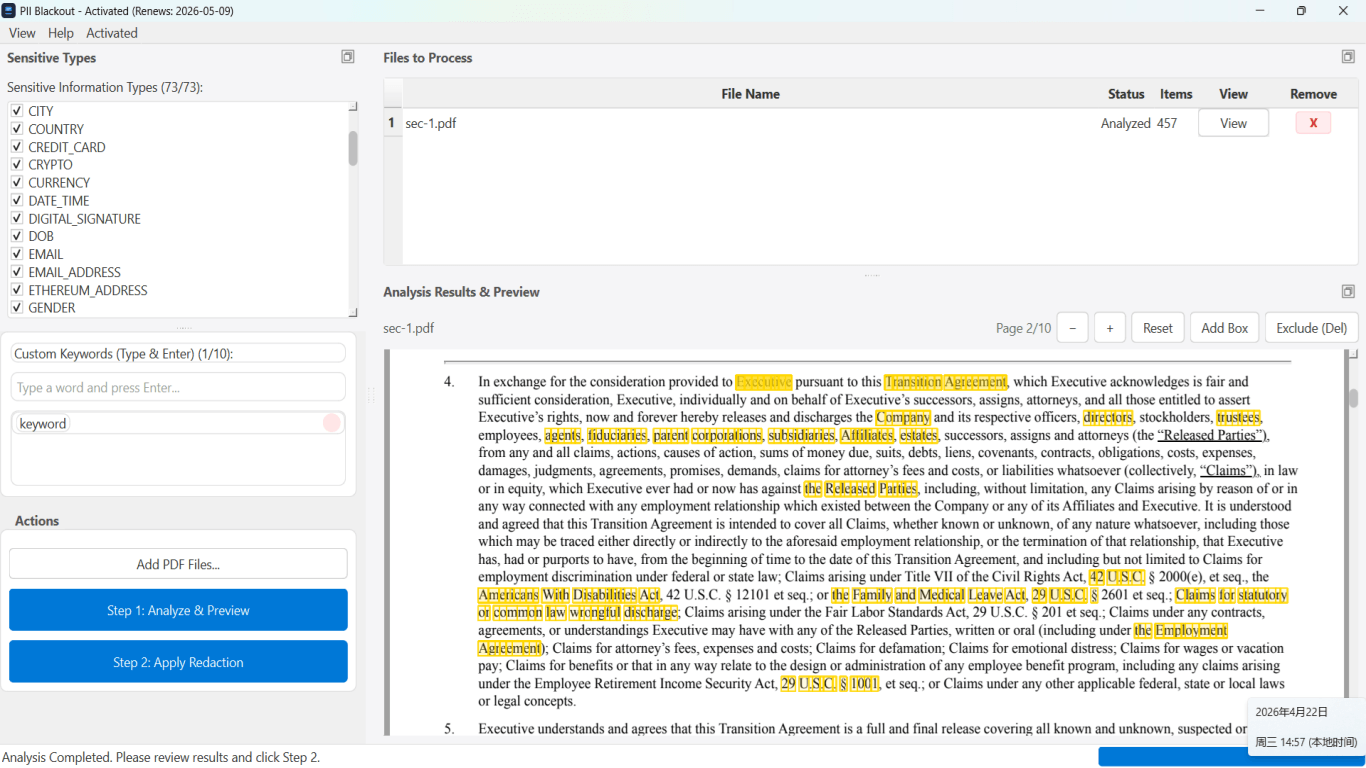
Adobe Acrobat Pro es lo que la mayoría entiende al buscar cómo redactar con Adobe—pero el Acrobat Reader gratuito no puede redactar en absoluto. El fallo es familiar: alguien resalta texto o dibuja una caja negra, guarda y asume que el archivo es seguro. Solo la herramienta Redact con Apply Redactions elimina permanentemente el contenido subyacente. Esta guía recorre el flujo de Acrobat Pro, qué deben hacer en su lugar los usuarios de Reader y cómo verificar la exportación—compare con cómo redactar un PDF sin Adobe y el hub de redacción de PDF antes de enviar extractos bancarios, presentaciones legales o documentos de RR. HH.
- → How do I redact a PDF in Adobe Acrobat Pro?
- → Why does Adobe Reader not have a redact button?
- → What is the difference between highlight and redact in Acrobat?
- → Do I need to sanitize metadata after Apply Redactions?
- → How do I know Acrobat redaction worked?
Acrobat Pro vs Reader
| Product | Redact tool? | Safe for PII? |
|---|---|---|
| Acrobat Pro (paid) | Yes — Mark + Apply | Yes, if Apply completed + verified |
| Acrobat Reader (free) | No redact tool | No — highlight/comment are overlays only |
| Acrobat online / free tier | Limited; varies | Verify paste test; avoid regulated uploads |
Redaction marks are reversible until you click Apply Redactions. Saving without Apply leaves extractable text.
Acrobat Pro step-by-step
- Open PDF in Acrobat Pro (not Reader).
- Tools → Redact → Mark for Redaction (text, images, pages as needed).
- Review all marks—search document for names/SSNs you may have missed.
- Apply Redactions (irreversible on this copy).
- Optional: Tools → Redact → Remove Hidden Information / Sanitize.
- Save As new filename; keep original unredacted copy secure.
Common Acrobat mistakes
- Using Comment drawing tools instead of Redact.
- Highlighting in Reader thinking it redacts.
- Marking but not Applying before Save.
- Skipping metadata sanitize after content redaction.
- Incremental save on original instead of Save As.
When to consider alternatives
Acrobat Pro costs per seat and lacks batch auto-detection for hundreds of statements. Teams processing bank PDFs, FOIA batches, or HR packets often pair Acrobat with dedicated offline tools—or skip Adobe entirely. See our without-Adobe guide for comparison.
Flujo paso a paso
- Confirm Acrobat Pro (not Reader).
- Mark all sensitive regions with Redact tool.
- Search document for missed identifiers.
- Apply Redactions.
- Sanitize hidden information and metadata.
- Save As new file.
- Ctrl+A paste test and Find search.
Errores comunes
- Redacting in Reader
Reader has no Apply Redactions—overlays only.
- Forgetting Apply step
Marks look black but text remains until Applied.
- No metadata pass
Author and XMP can leak after perfect body redaction.
Verificación antes de compartir
- ✓ Apply Redactions completed (not just marked).
- ✓ Paste test from redacted regions empty.
- ✓ Find search for known strings returns nothing.
- ✓ Document Properties reviewed or scrubbed.
Opción de herramienta offline
Para extractos bancarios, producciones legales, RR. HH. y otros PDF de alto riesgo, el software de escritorio con eliminación de PII offline detecta identificadores, permite revisar coincidencias y aplicar redacción permanente sin subir a la nube. centro de redacción PDF y redacción PII en lote ayudan con carpetas enteras.
Descargar prueba gratuitaFAQ
Can I redact a PDF with free Adobe software?
Acrobat Reader cannot truly redact. Use Pro, or an alternative with Apply-equivalent removal and verification.
Does Acrobat redact remove metadata automatically?
Not always. Run Remove Hidden Information / sanitize as a separate step after Apply.
Is Adobe redaction reversible?
After Apply Redactions on that file, content removal is permanent. Keep a separate unredacted original.